Dear User:
This is the guideline for the VINKA LIFE 2.0 system.
Here are a few important topics to talk about, enjoy.
*OPERATING
The application is operated entirely by touching the screen
1.EBIKE
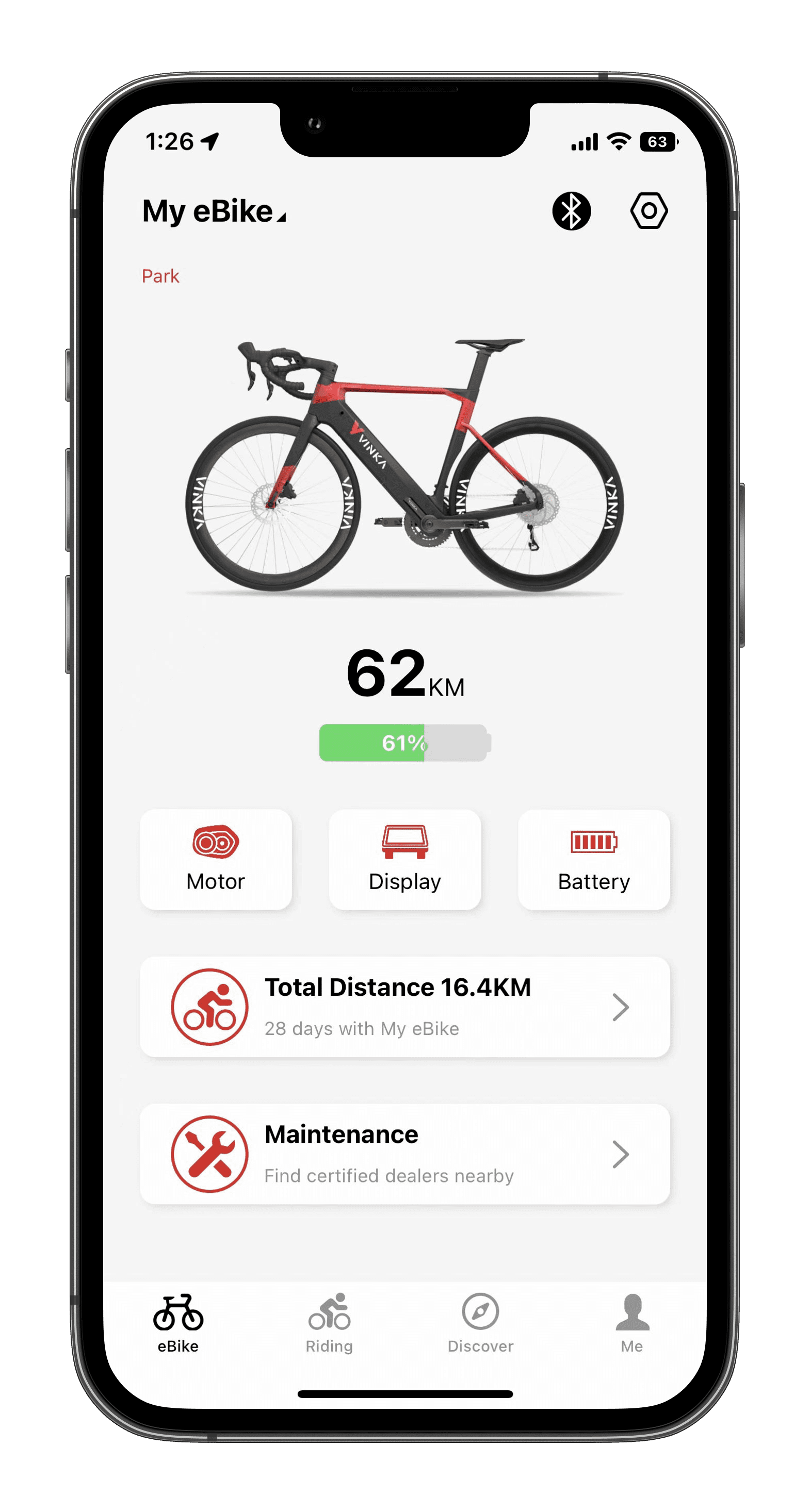
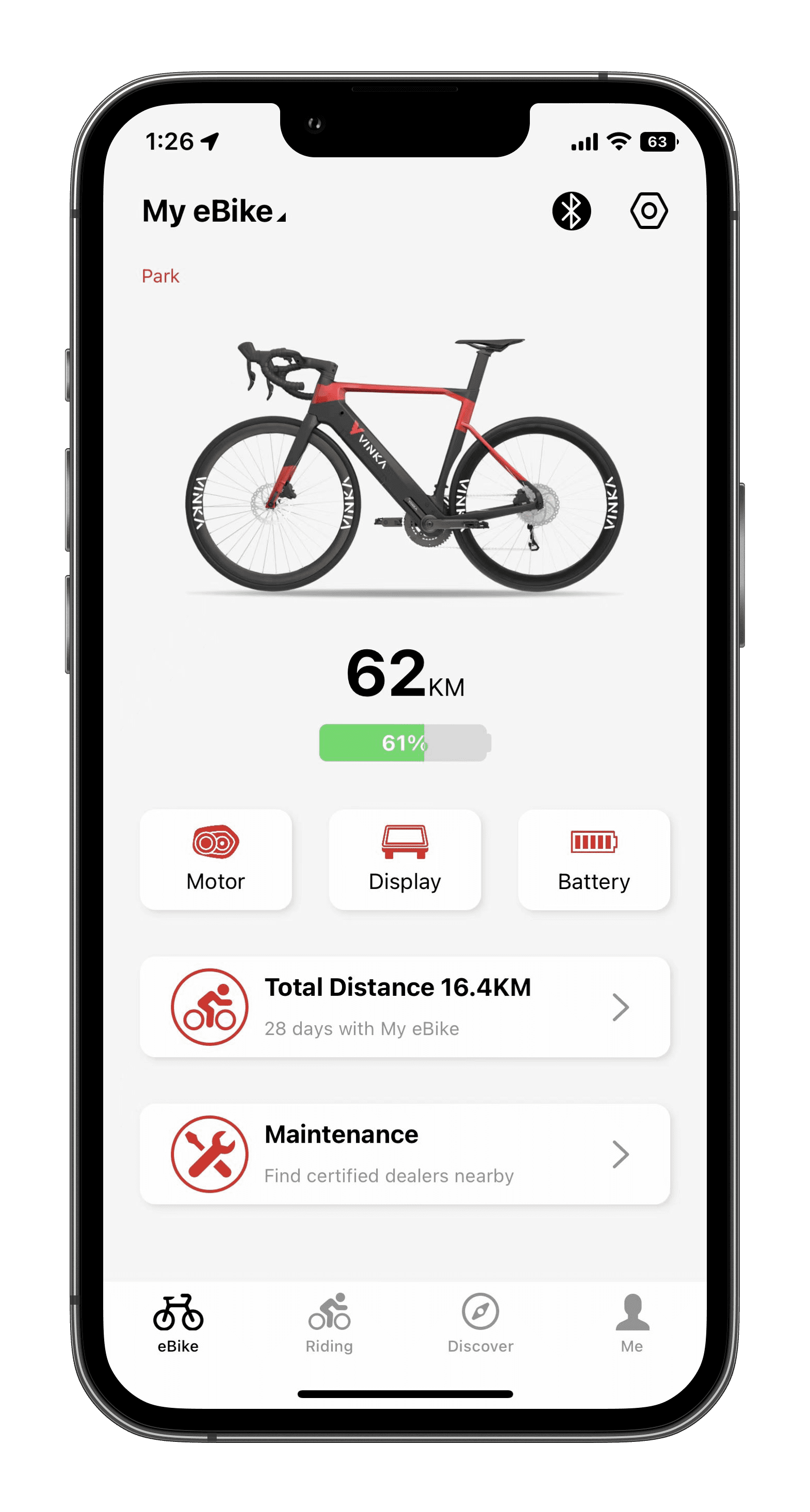
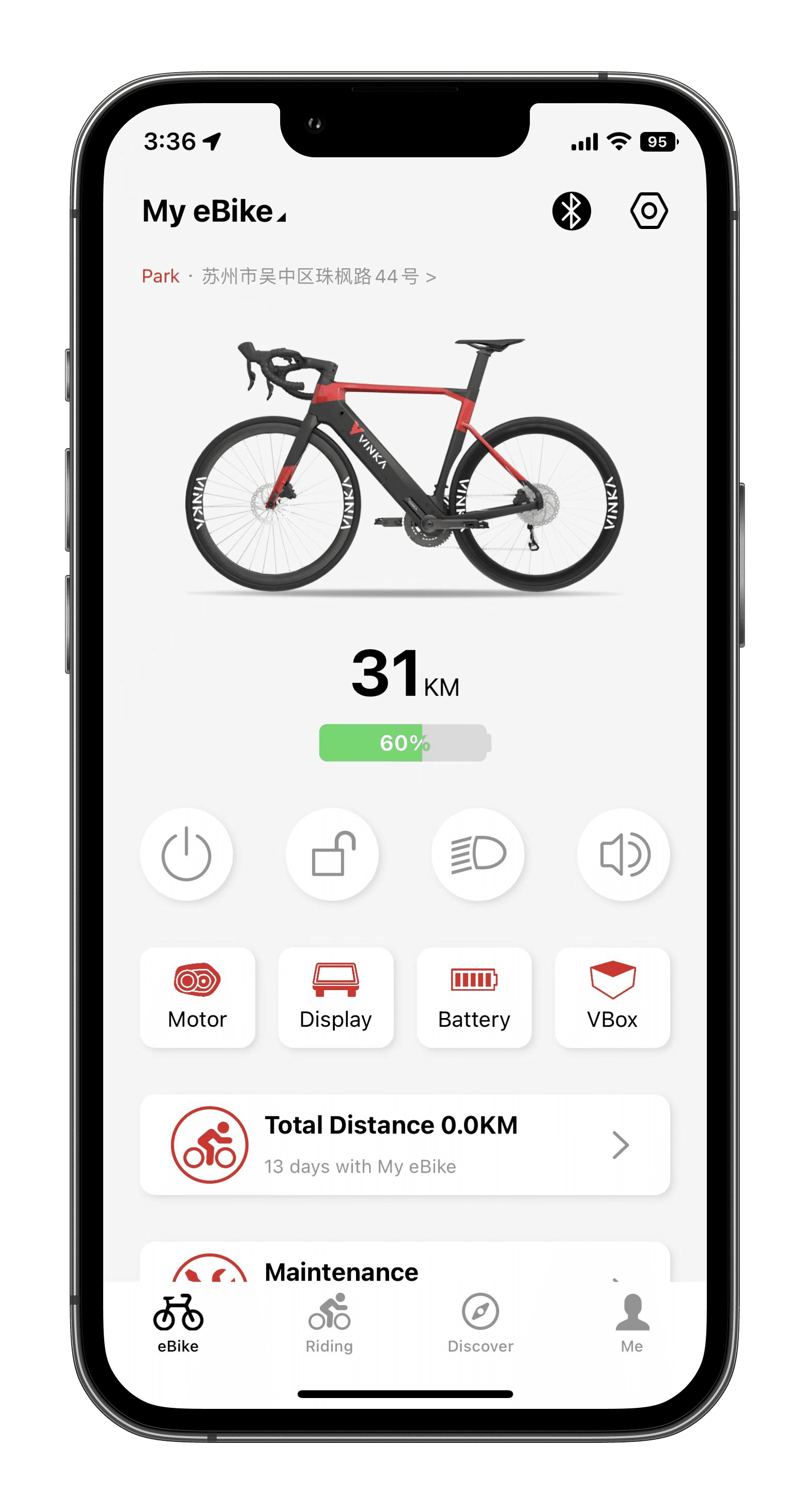
The main screen shown after logging into the app contains all the necessary information such as battery power, driving range, etc.
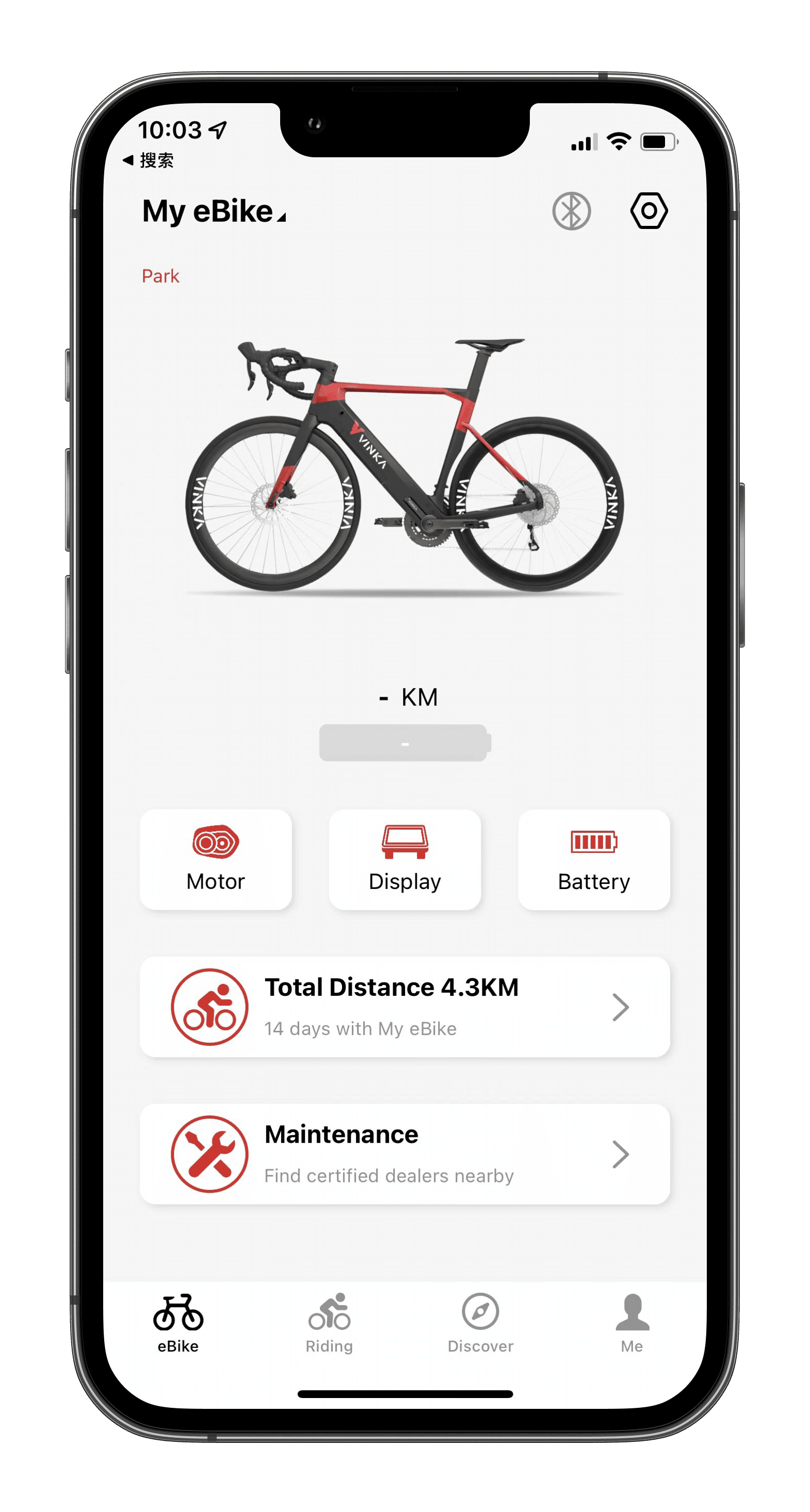
If the main screen is mostly grey and there is no relevant information, the App may not have succeeded connect to the VK system via Bluetooth.
(If the connection is not successful, please check step 1.1)
1.1 Bluetooth
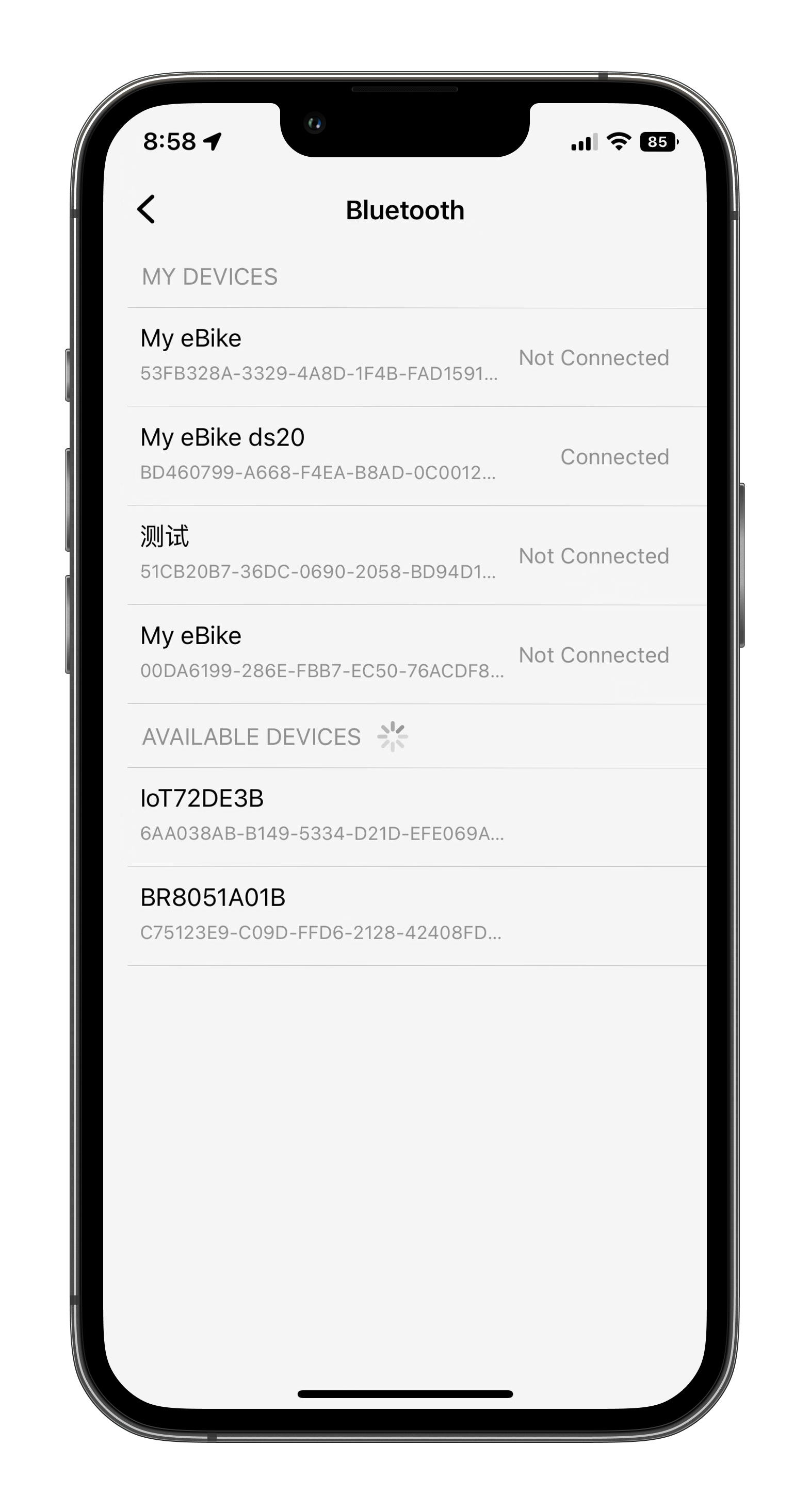
The VK APP must communicate with the eBike system in order to use all its functions. On the main screen, you can see the button with the Bluetooth symbol.
Click on this button to enter the Bluetooth connection menu. Follow the system instructions.
When the eBike is switched on and your smartphone's Bluetooth is also switched on, the VK APP starts searching for the eBike's Bluetooth signal. When it is listed, click on its name to establish a connection. After a successful connection, you can see the eBike's information in the VK APP.
1.2 Location
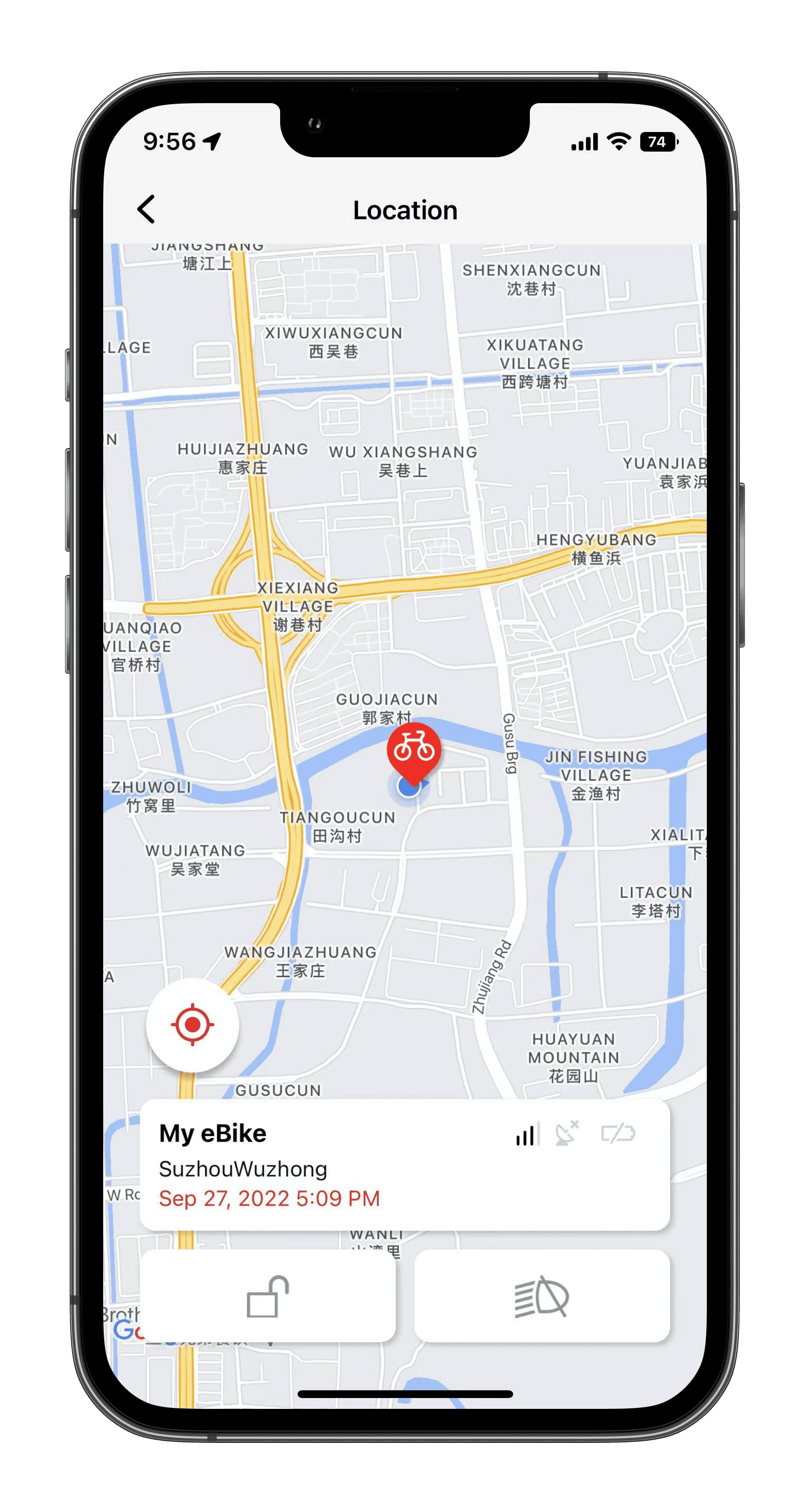
VBox locates the current position of the eBike and supports remote locking, unlocking, turning on and turning off the lights.
(This feature requires your bike to have VBox)
1.3 Submenus
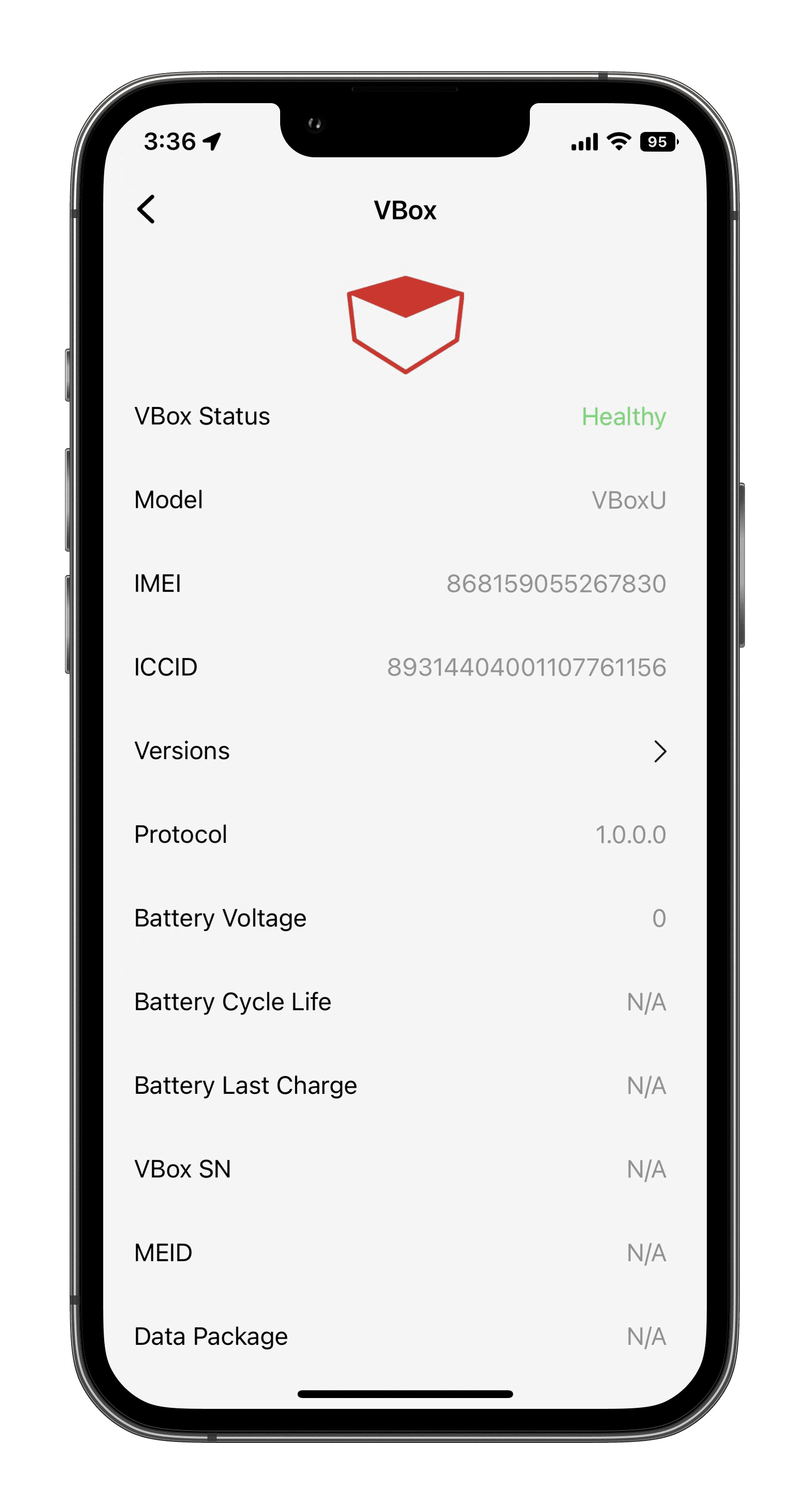
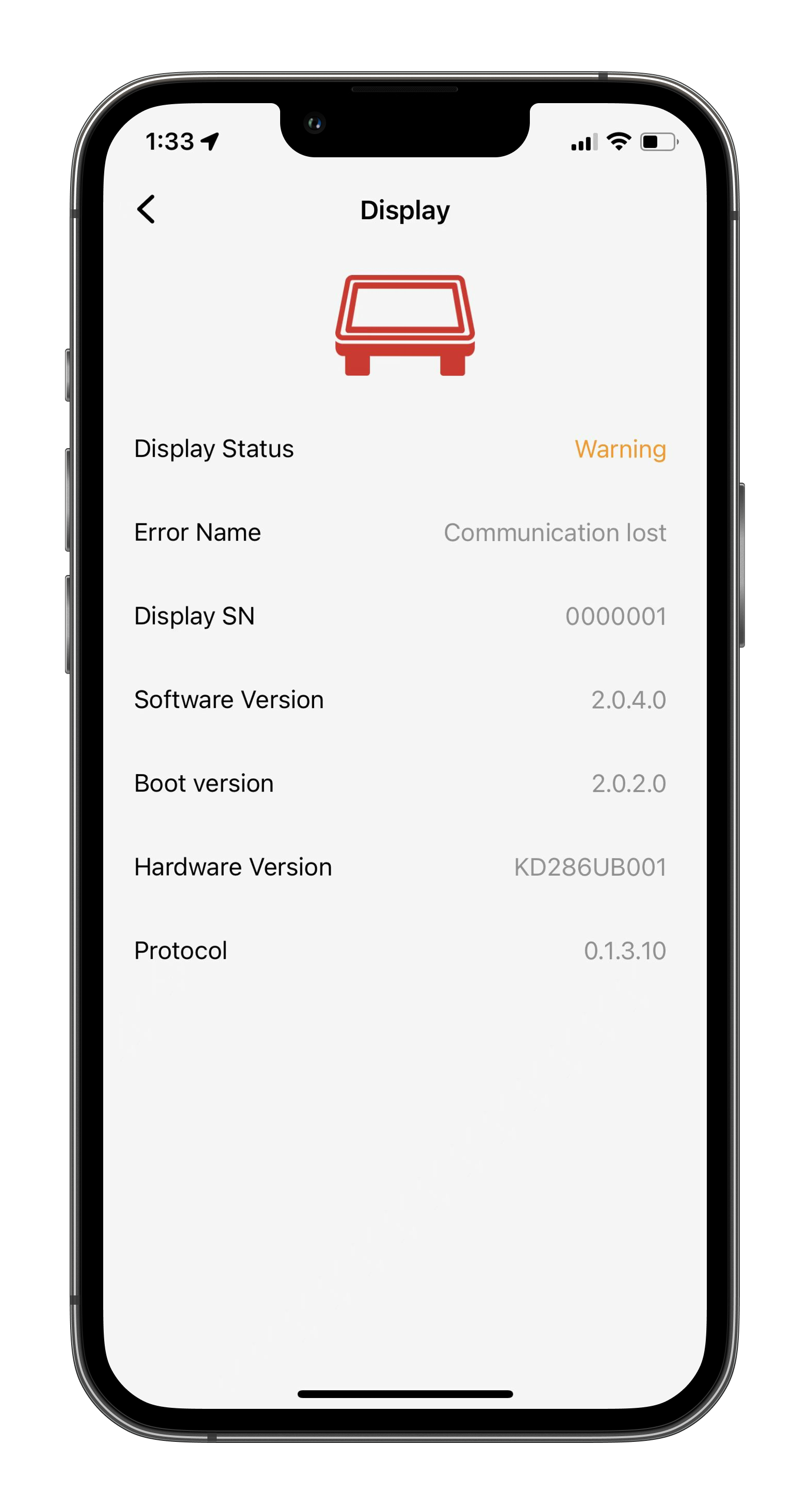
Provides basic information on important components of eBike.
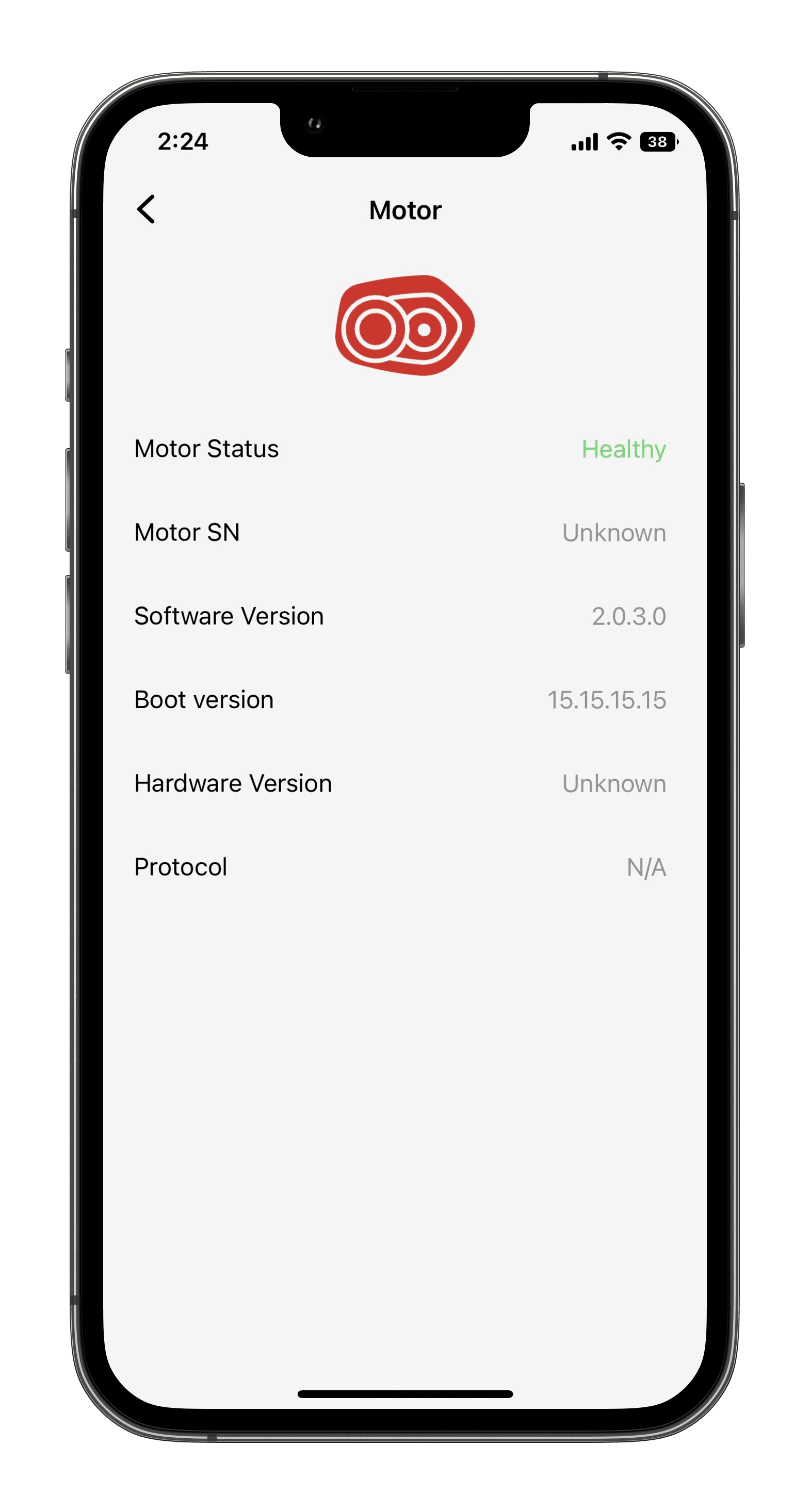
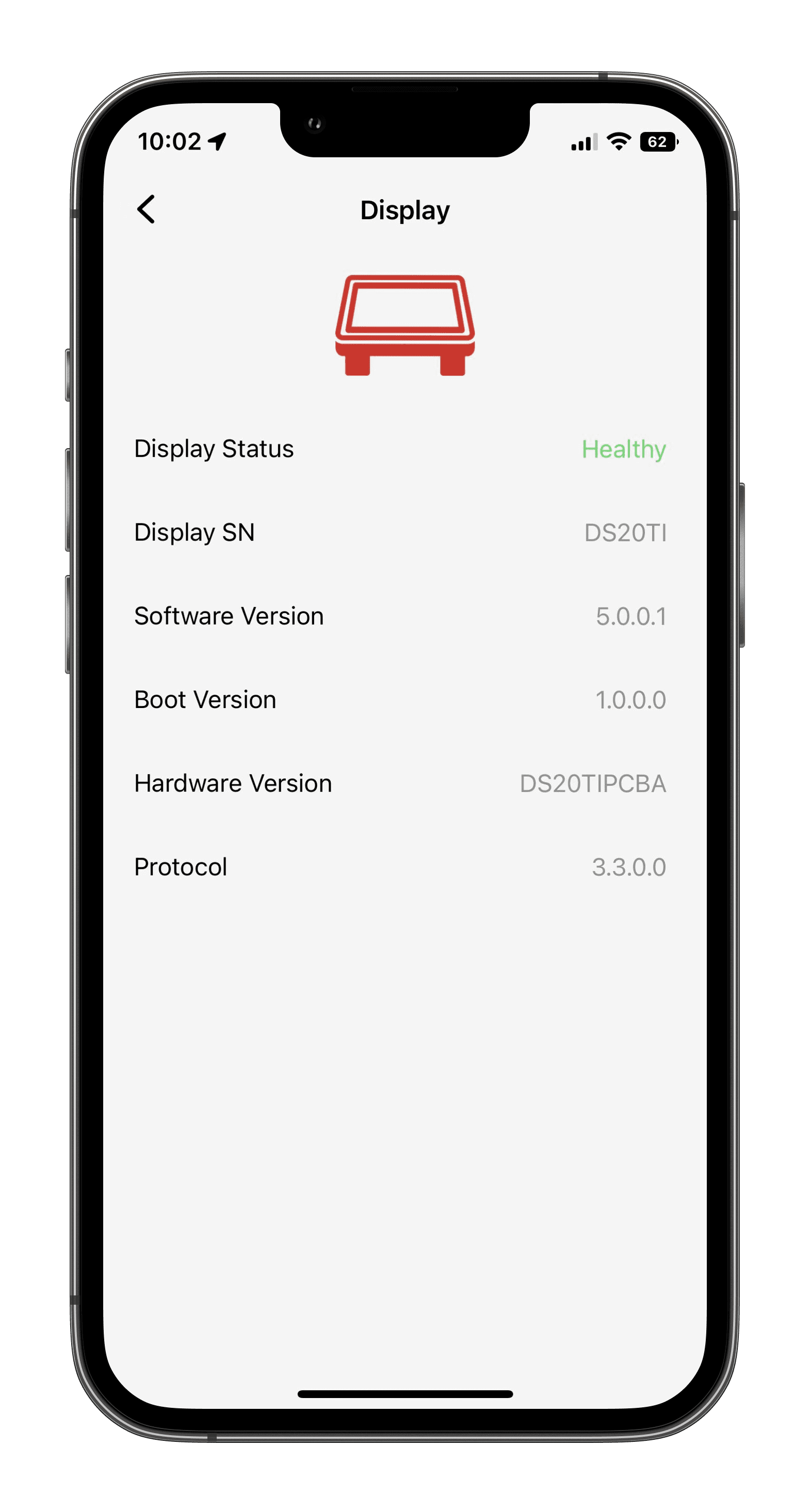
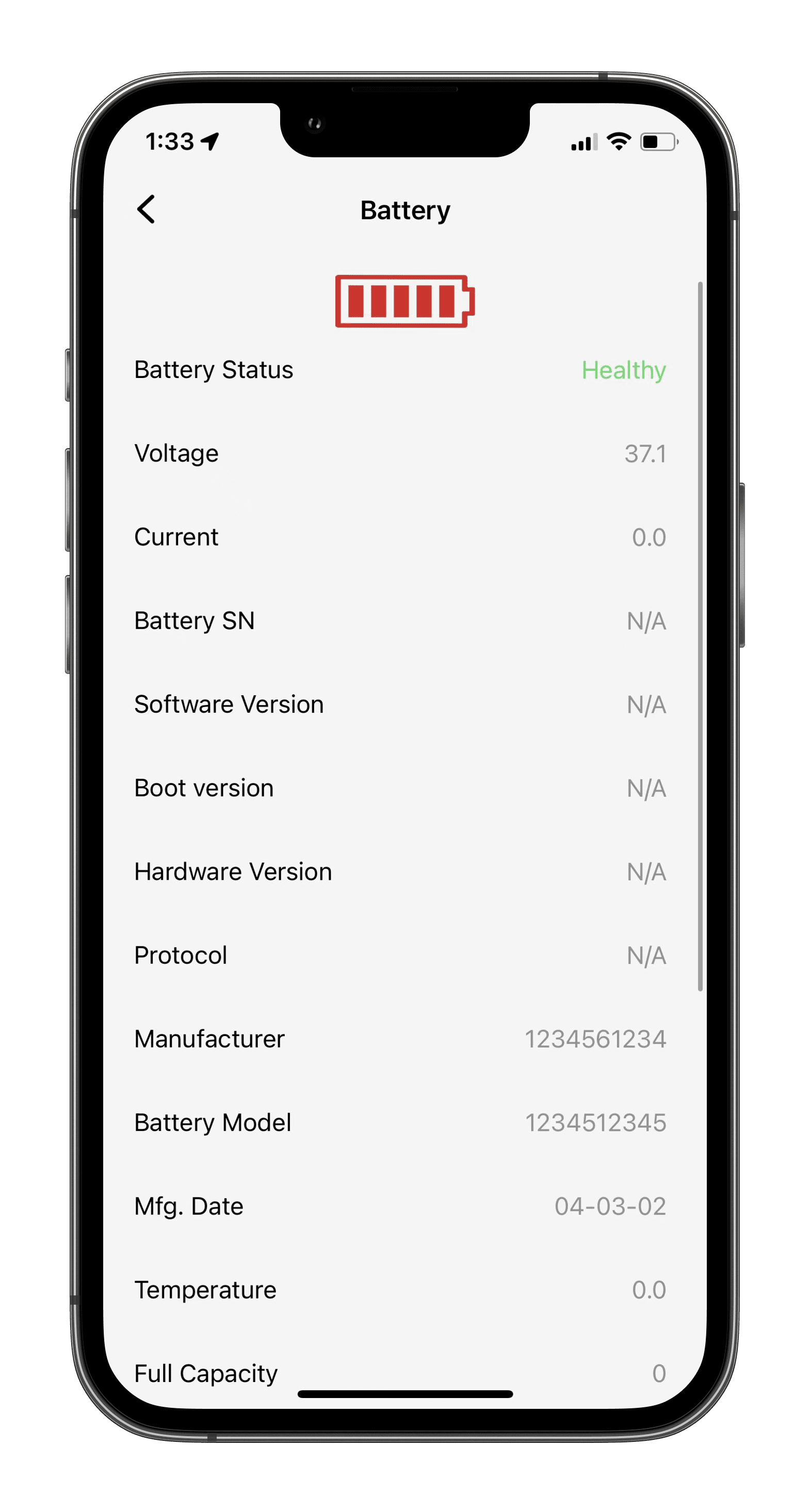
Motor/Display/Battery/VBox
Contains information on motor/display/battery/VBox status, software version, etc.
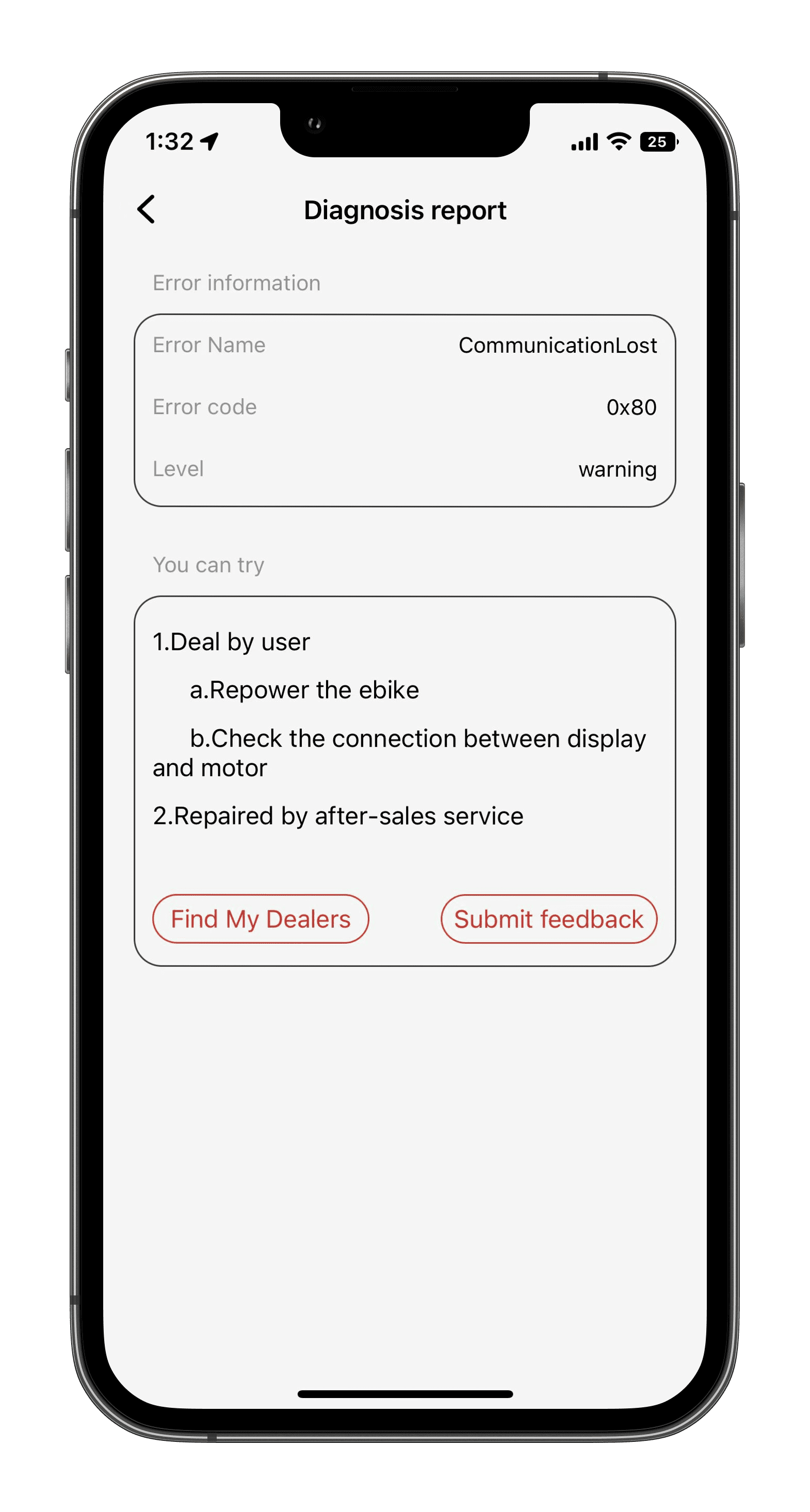
If the exclamation mark symbol appears in the top right corner, click on the icon to bring up the “error name” option, click again to get an error report and to give feedback on the problem.
VBox
If your eBike system contains VBox, you can turn the power on and off remotely, lock the bike(motor without electric assistance) remotely and switch the lights on and off remotely.
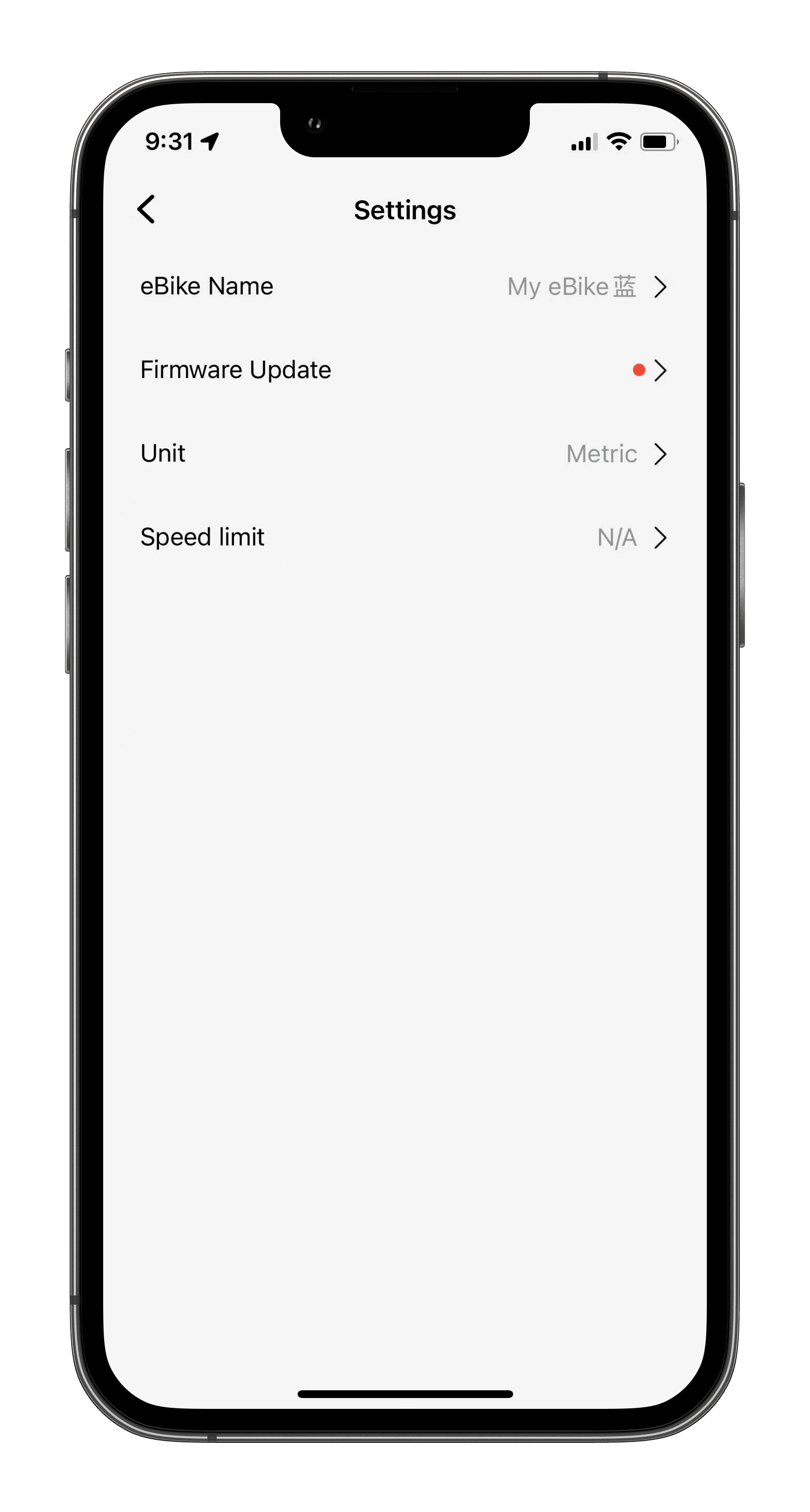
1.4 Settings
Settings for your eBike, such as changing the name of your eBike, OTA upgrades, metric/imperial switching, and speed limits.
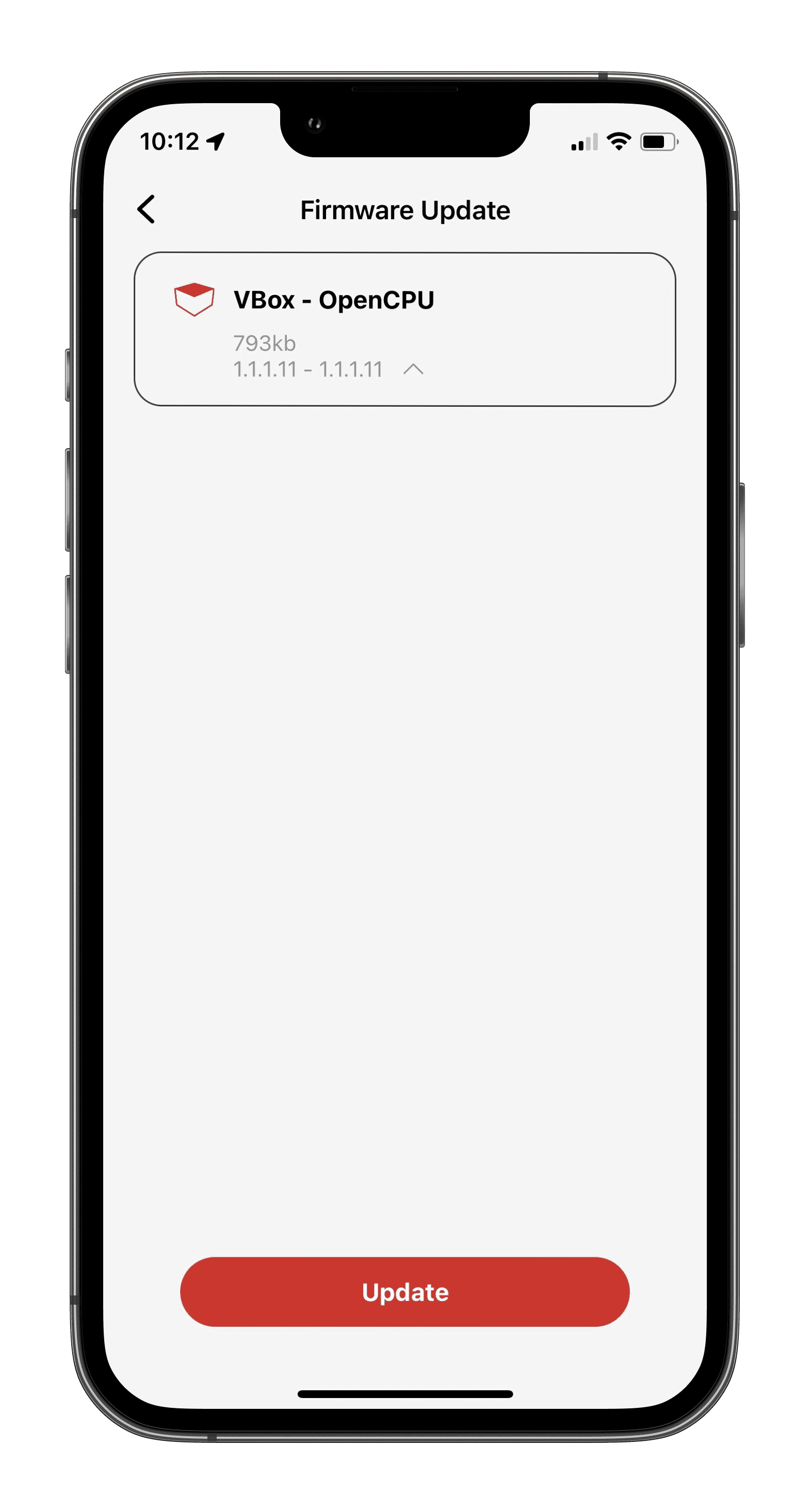
Firmware Update
Motor,battery,Display,VBox Software Version Update,Click on software version update/click update software version.
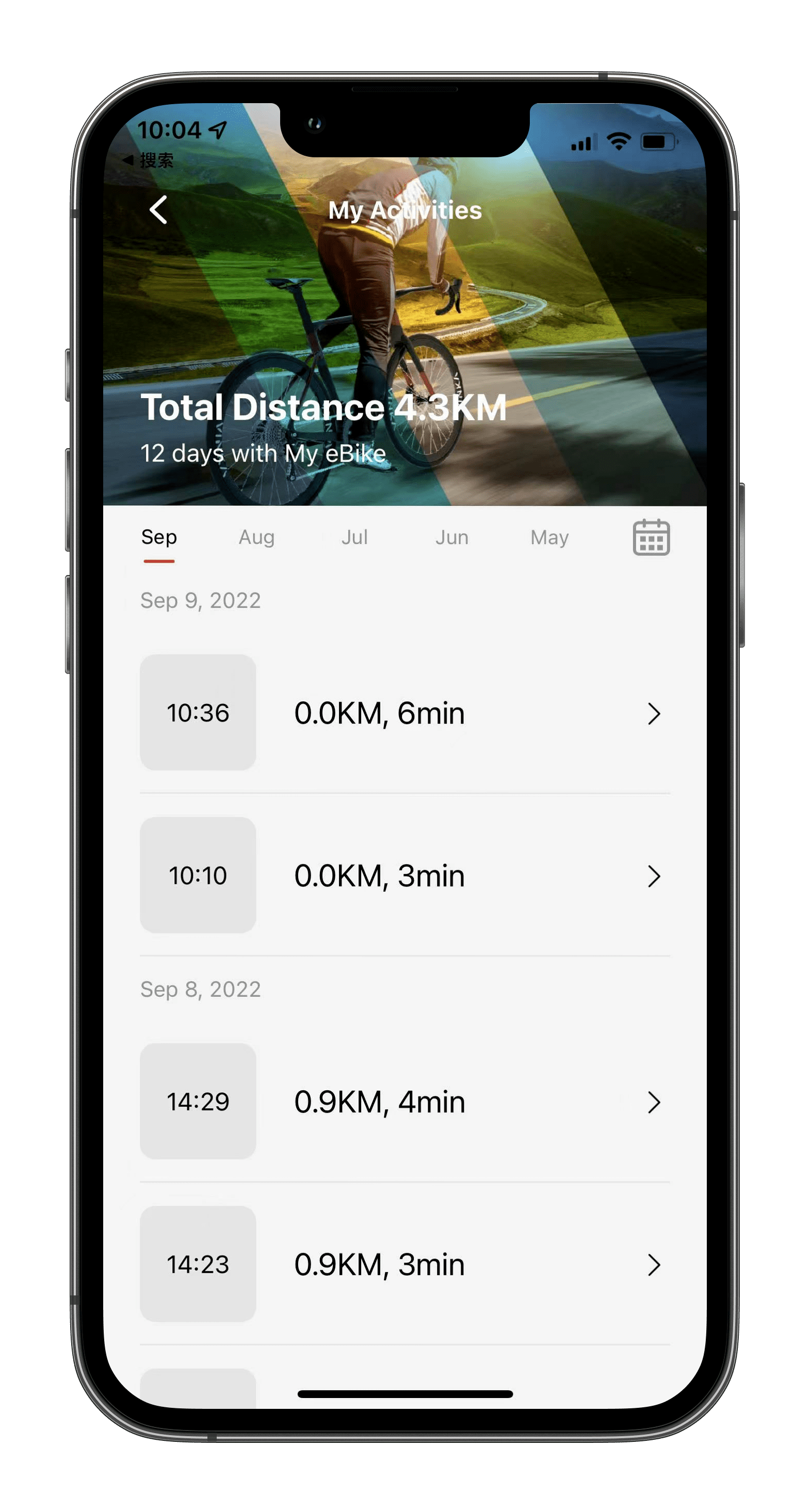
1.5 My Activities
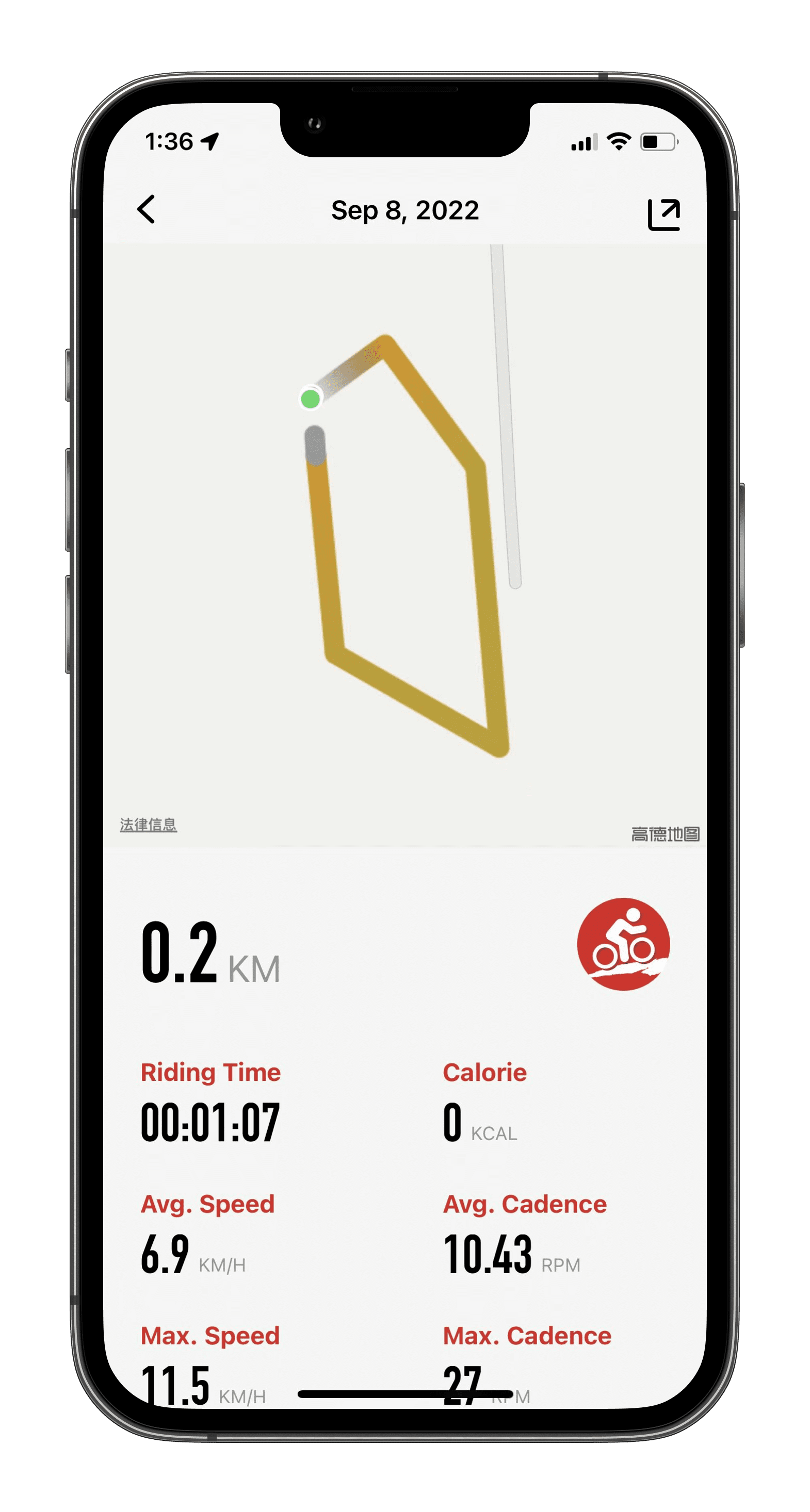
You can click on "Total Distance" to view historical ride data and share it on your social media.
When you start a ride, the system records all information about the current ride, including pedal cadence, speed, assistance, etc.
Everything is archived in this window so that it can be checked again later.
Click on the Start button to start recording the ride and all recordings will be stored in the Total Distance submenu.
The minimum length of a recorded route is 100 metres and the minimum recording time is 1 minute.
1.6 Maintenance
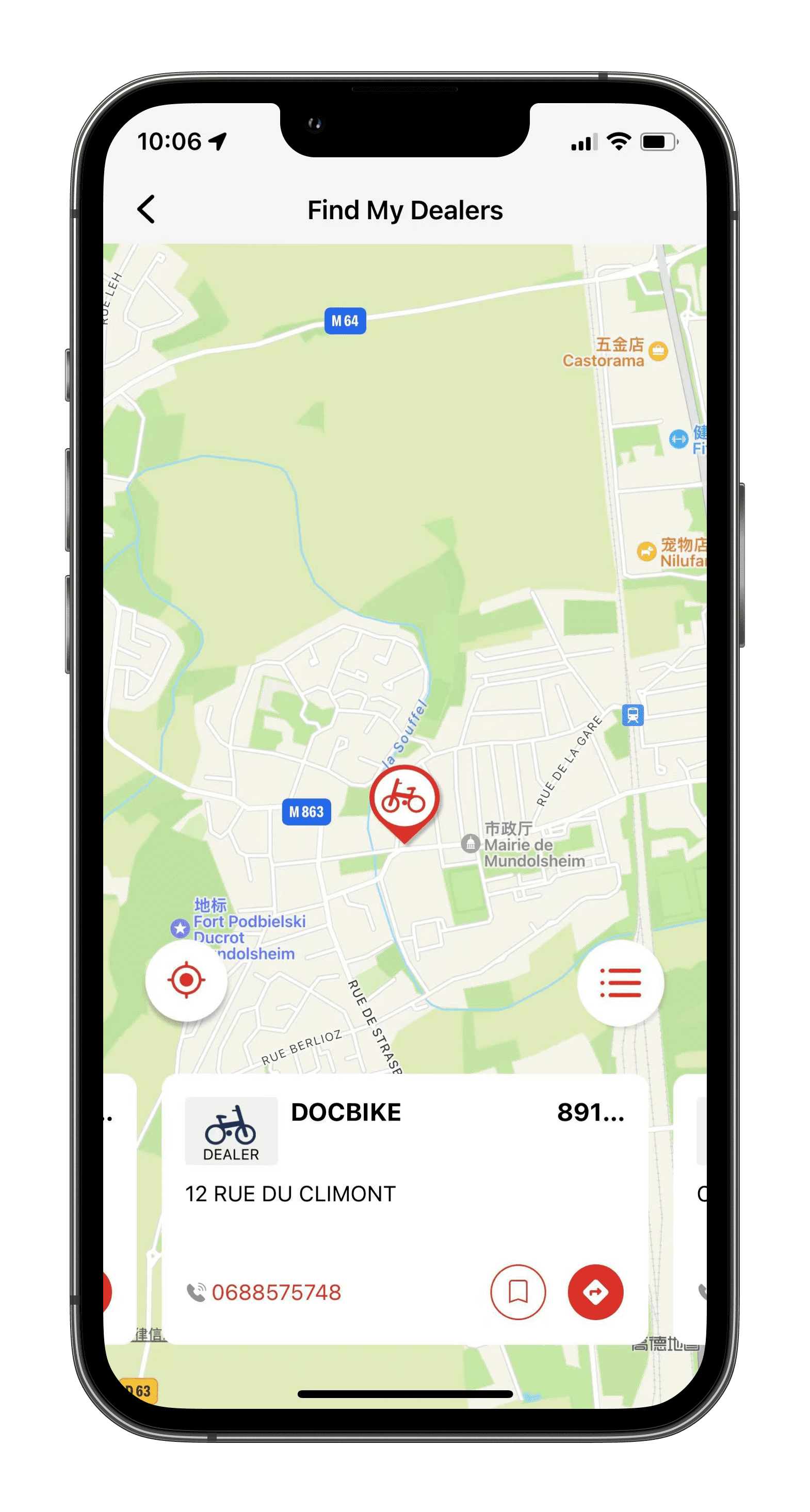
You can find the corresponding dealers on the map, bookmark them and locate them by navigation.
2.RIDING
This page contains four sub-pages.
2.1 Status
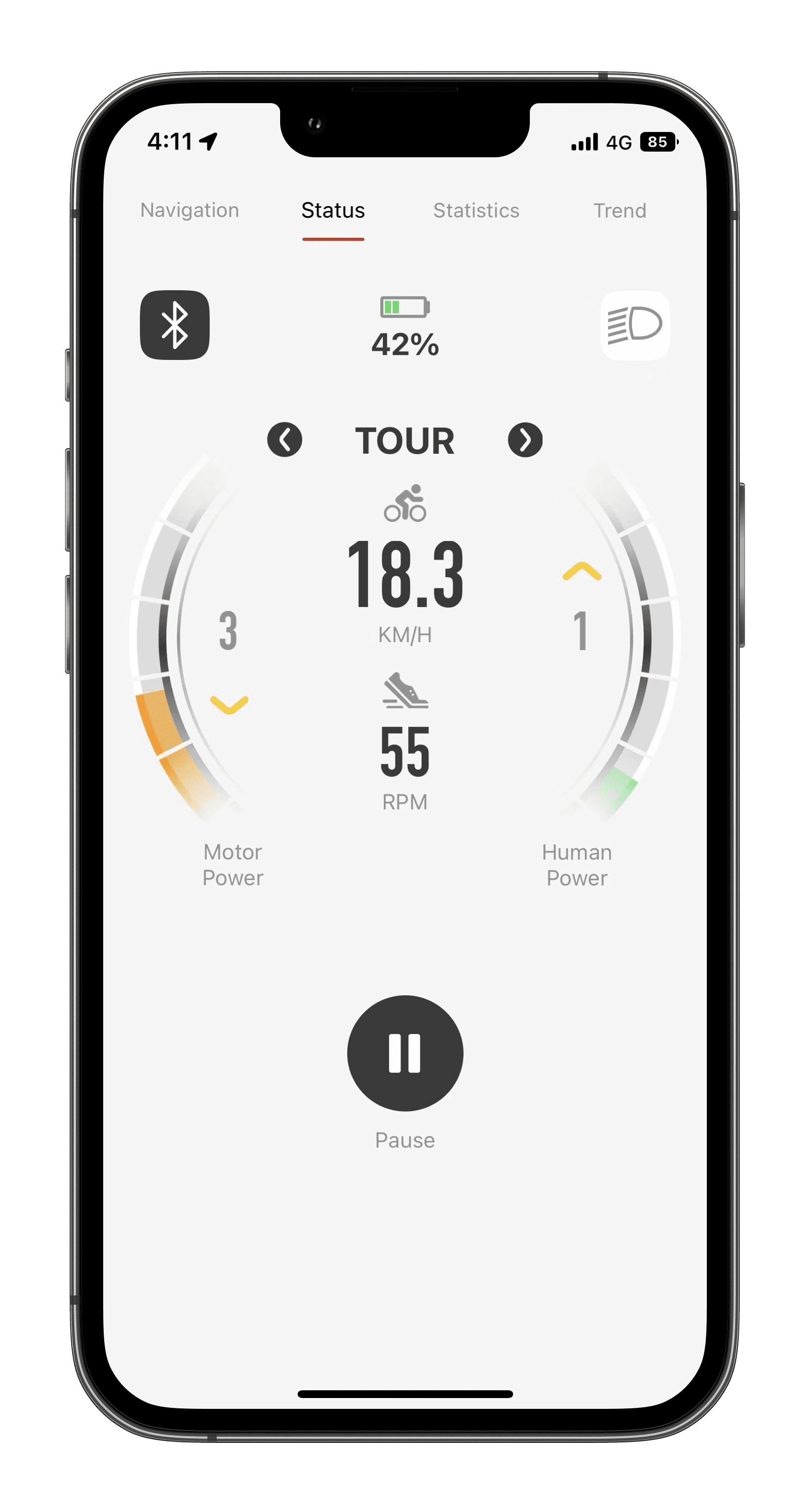
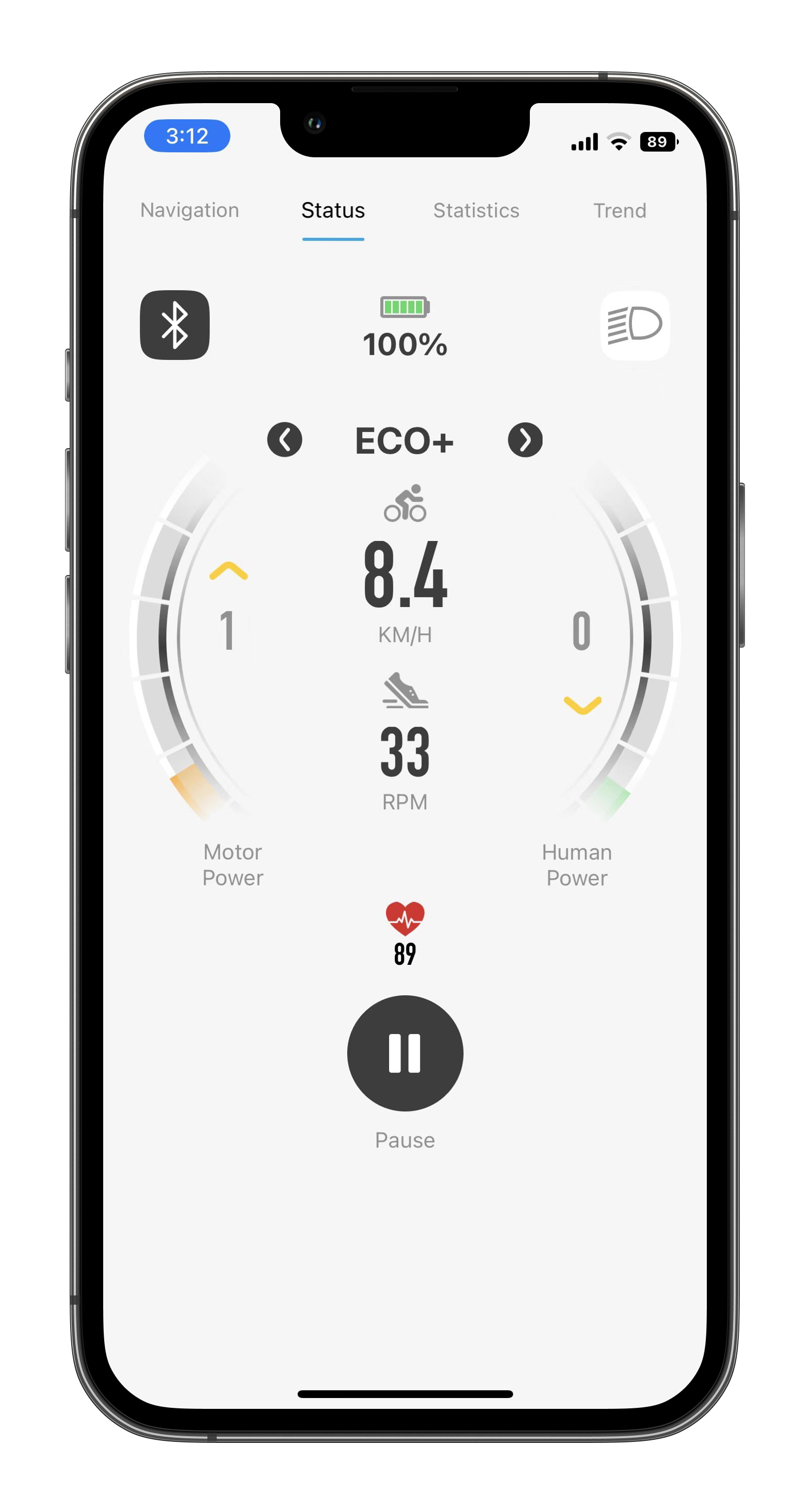
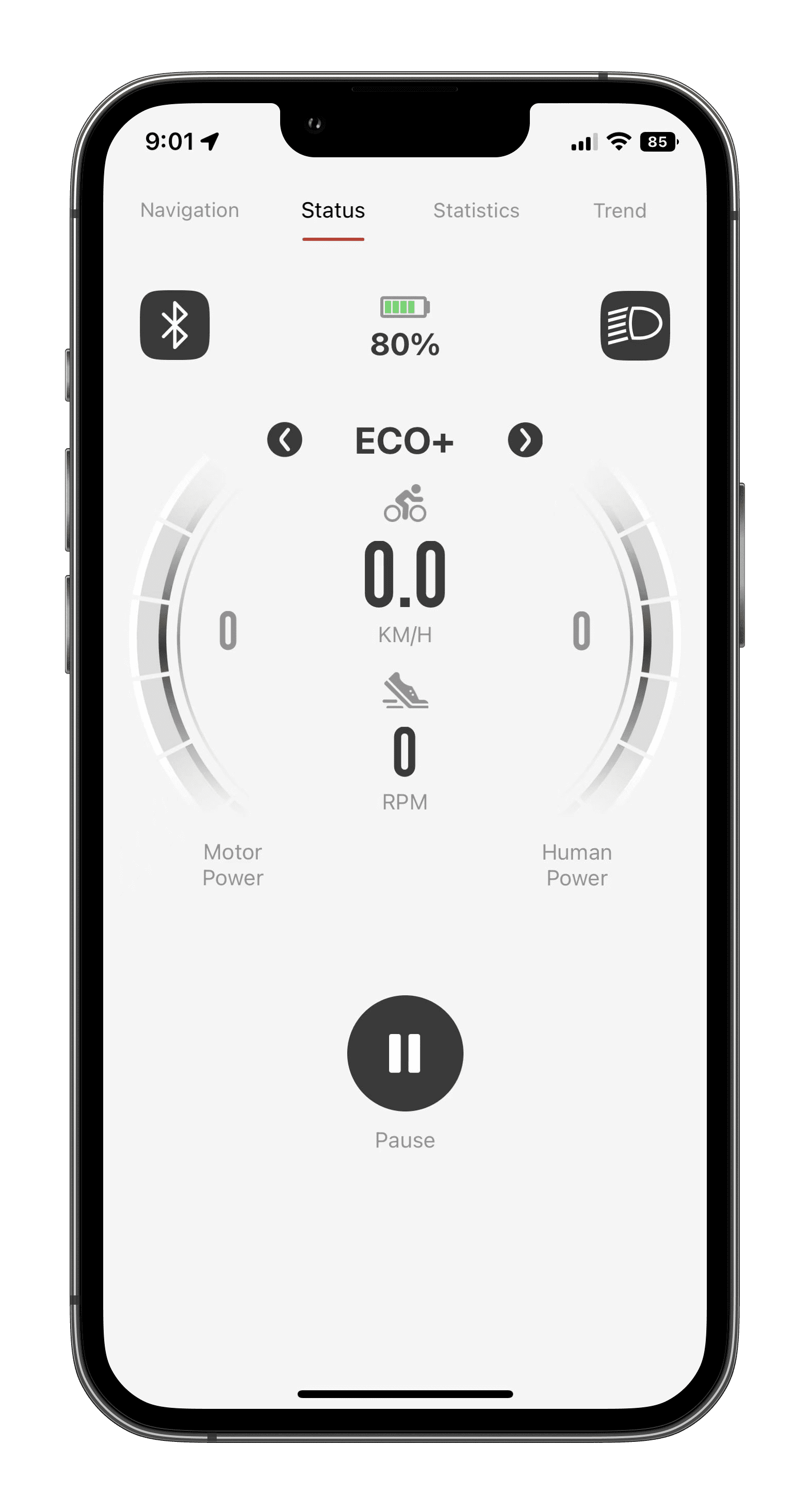
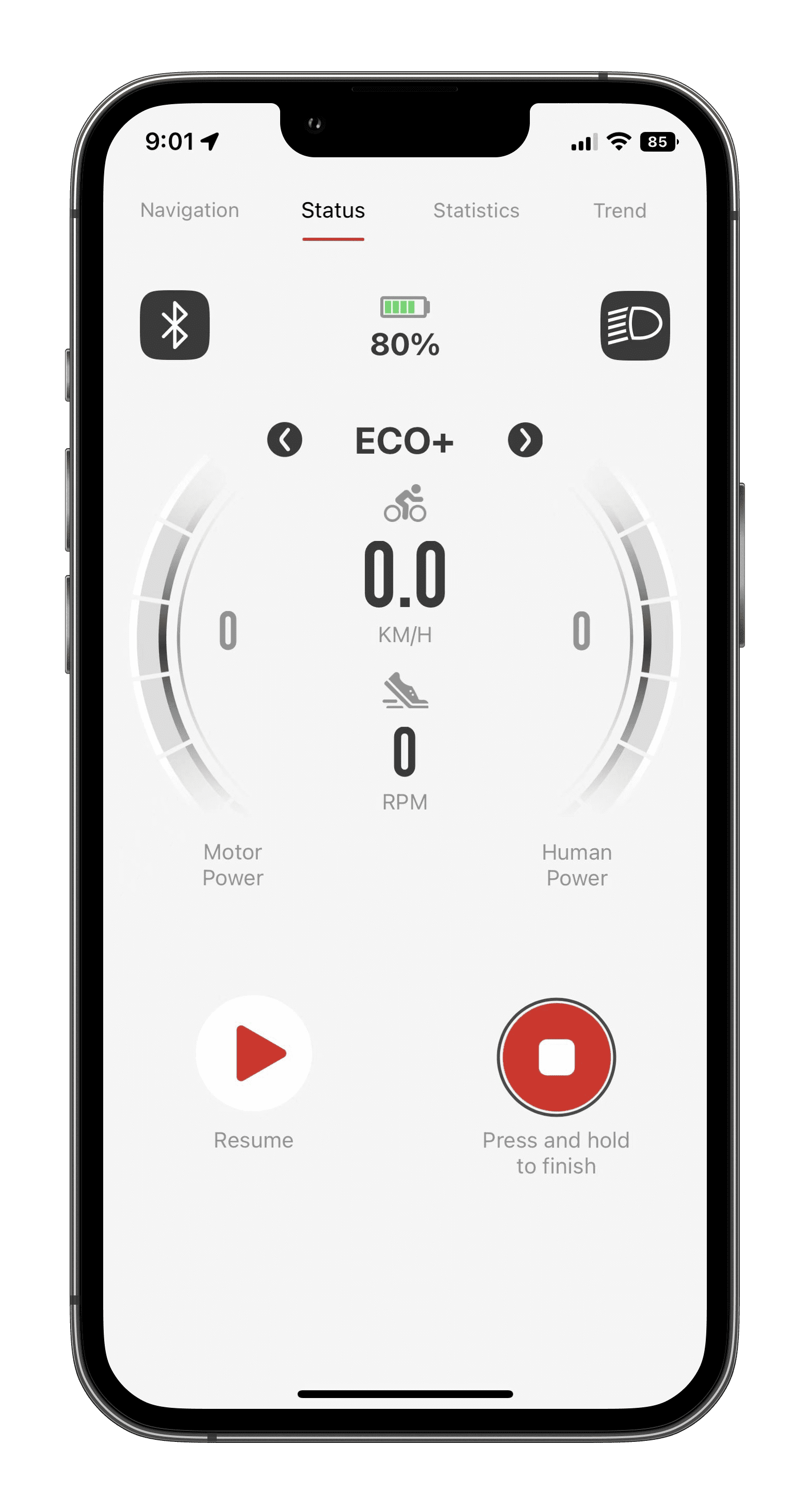
This page contains the following information:
·Bluetooth
The VK App must communicate with the eBike system in order to use all its functions. On the main screen you can see the Bluetooth symbol
· Light
Press the light button to turn the light on or off.
· Speed(km/h)
Shows the current speed of the eBike, which should be 0 Km/h when the system is switched on but the eBike is stationary.
A speed of 25 Km/h is the maximum speed supported by the motor when riding. When the speed exceeds 25 Km/h, the motor does not provide assistance and the eBike is driven by the pedals only.
· Pedal cadence(RPM)
The Revolutions Per Minute (RPM) value indicates the current pedal speed.
· Power
The orange bar represents the current power used by the motor. This information shows the power usage according to the specific conditions of the ride.
· Battery
The battery level of the eBike is show at the top of the page.
· Gear shifting
Click on the left and right arrows to switch gears, different eBikes have different gears to choose from.
· Gear shifting Indication
There are two numbers on the inside of the coloured bar, the number on the left indicates the gear of the Front Derailleur(FD) and the number on the right indicates the gear of the Rear Derailleur(RD).
If two arrow symbols appear, this indicates that the system recommends upshifting or downshifting.
(Use of this function needs to be supported by your eBike hardware, otherwise it will not work)
2.2 Start
Start & End
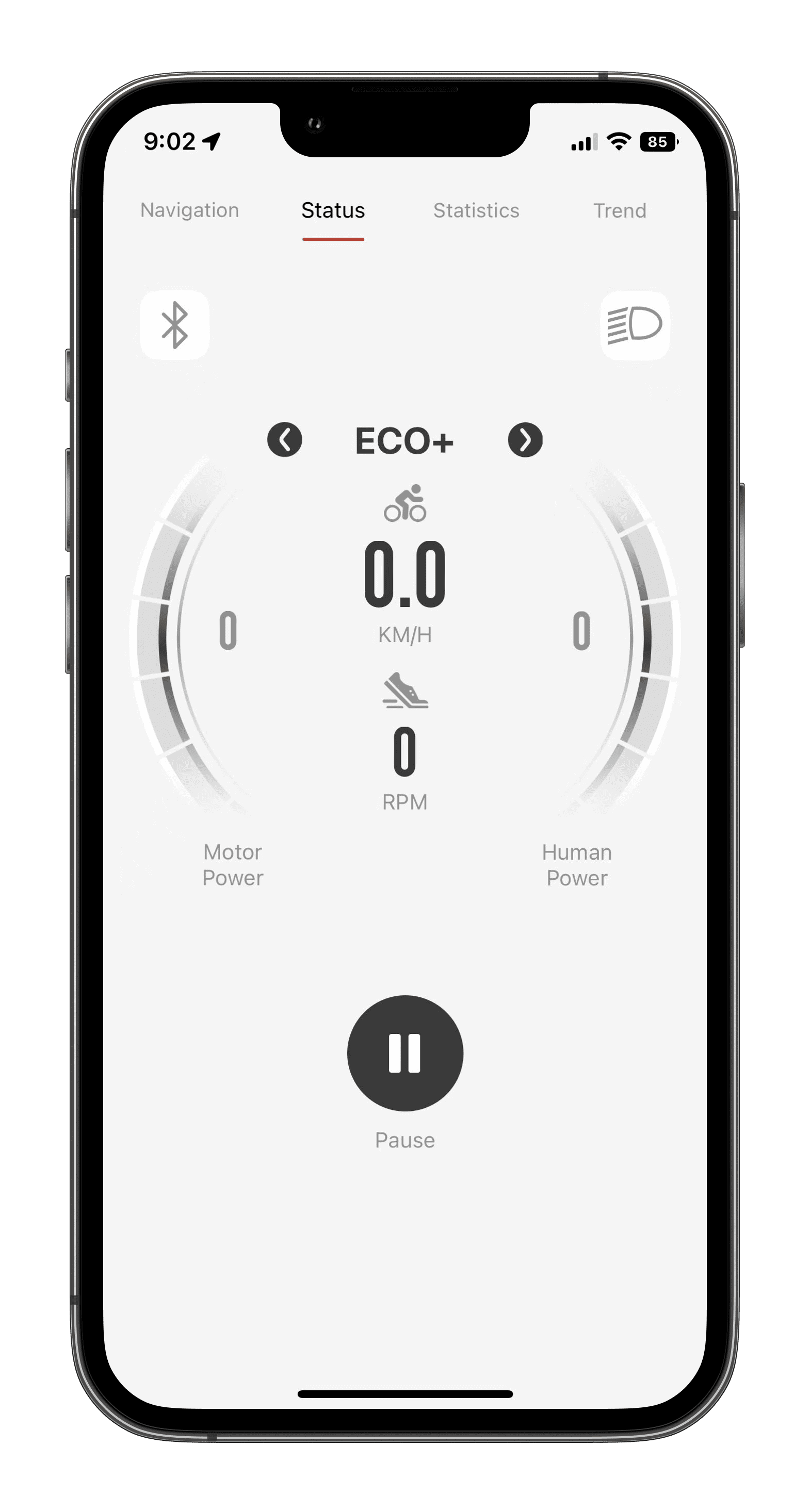
Click on the 'Pause' button and the 'Stop' and 'Continue' options will appear. Long press the 'Stop' button to end the ride recording, and click 'Continue' to continue recording this ride.
If your trip is interrupted, you can click the "Pause" button to pause the recording and prevent the loss of ride data.
Click on the 'Start' button to start recording and the system will record all information about the ride, including pedal cadence, speed, assistance etc.
All information is stored in "Total Distance" for easy viewing at the end of the ride.
Note that if your smartphone is set to power saving mode, the route will not be recorded accurately.
Pause & End
Click on the 'Pause' button and the 'Stop' and 'Continue' options will appear. Long press the 'Stop' button to end the ride recording, and click 'Continue' to continue recording this ride.
If your trip is interrupted, you can click the "Pause" button to pause the recording and prevent the loss of ride data.
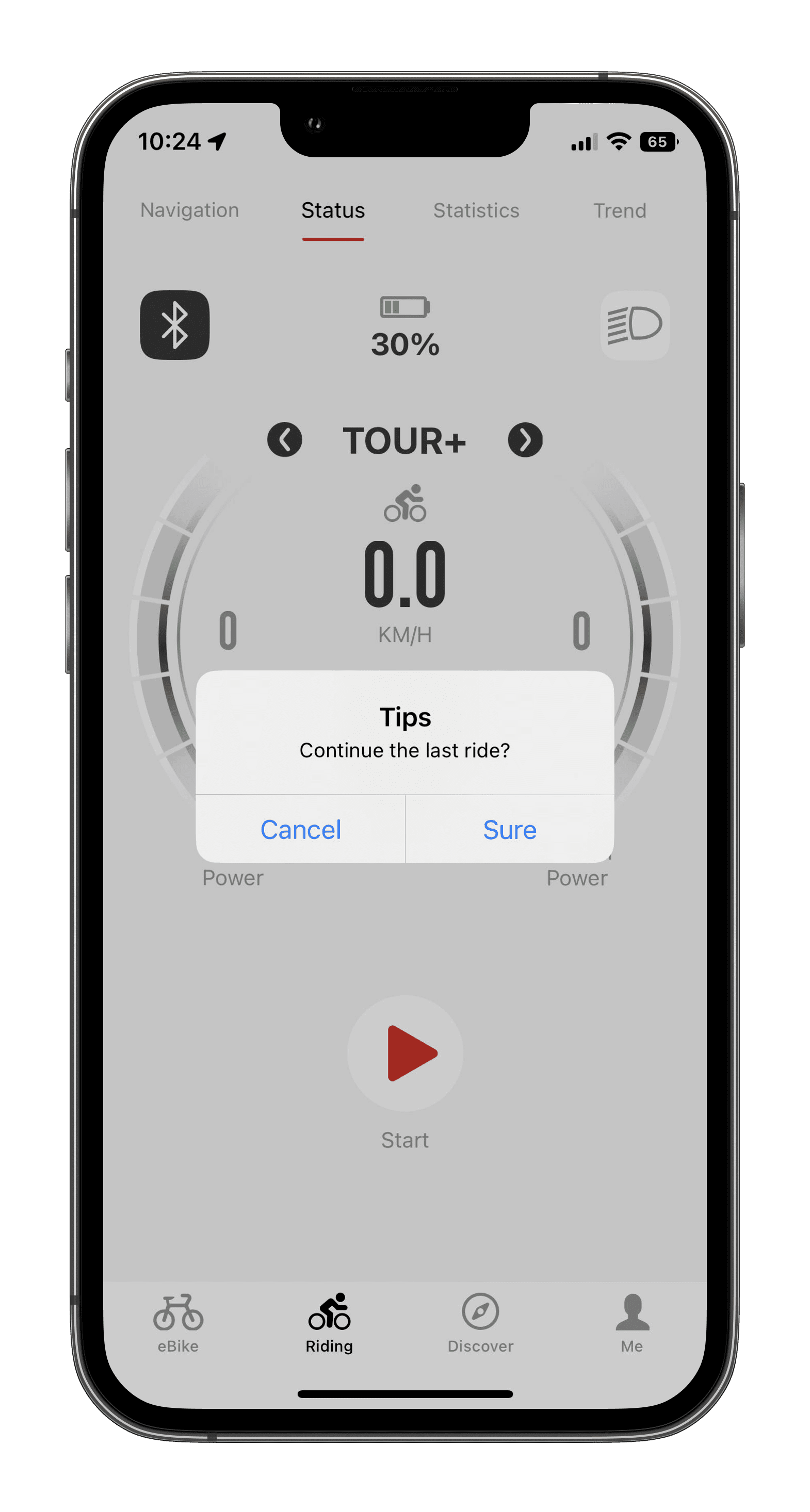
If the VK APP is closed while it is working, it will pause the recording itself. When you open the APP again, it will ask if you want to continue the last ride.
If the Bluetooth connection is disconnected during a ride, the ride data will continue to be recorded unless you voluntarily end the ride.
2.3 Navigation
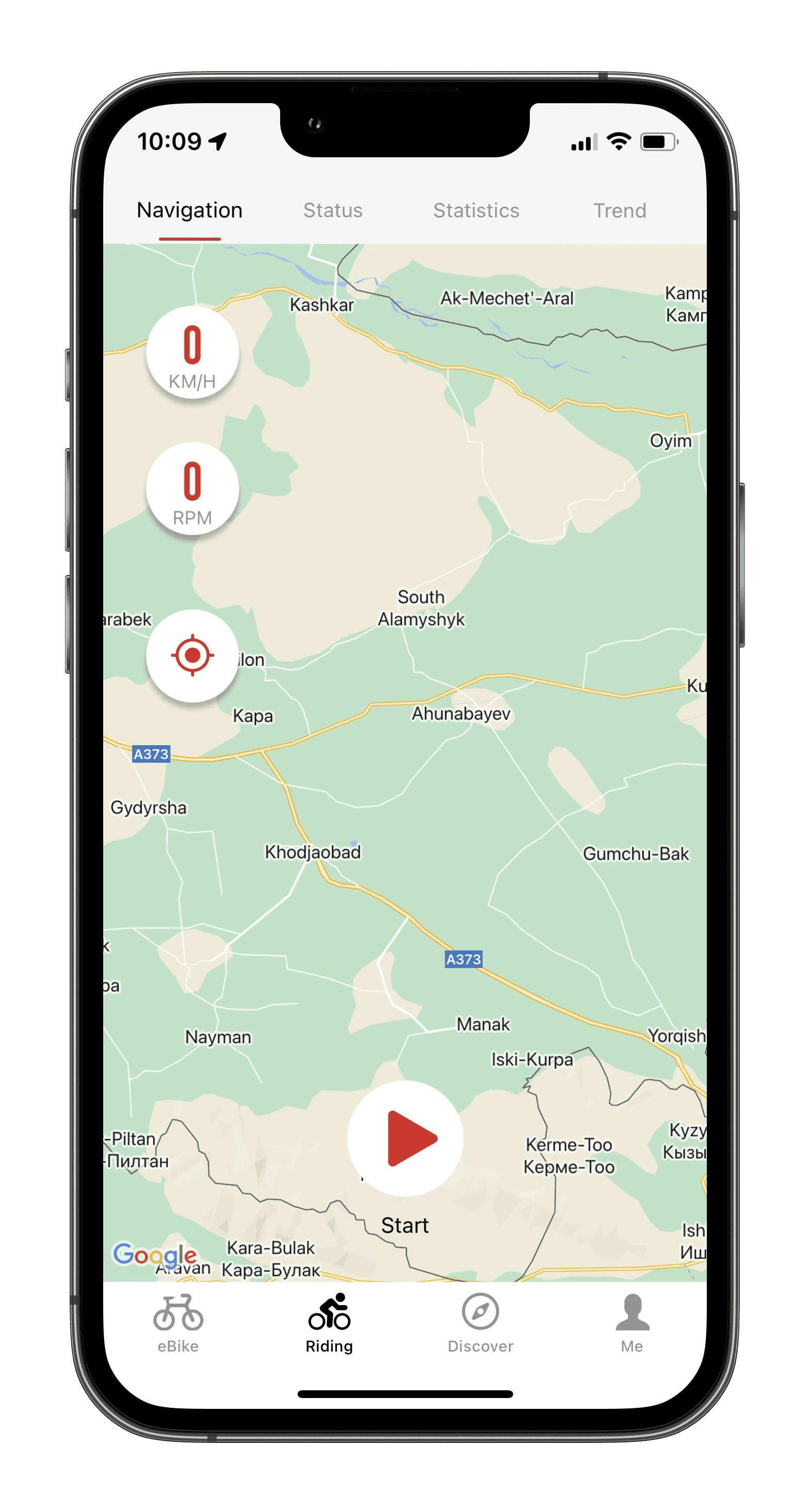
Press the navigation button to enter the map interface, which contains information on speed (km/h), pedaling cadence (rpm) and real-time position.
2.4 Statistics
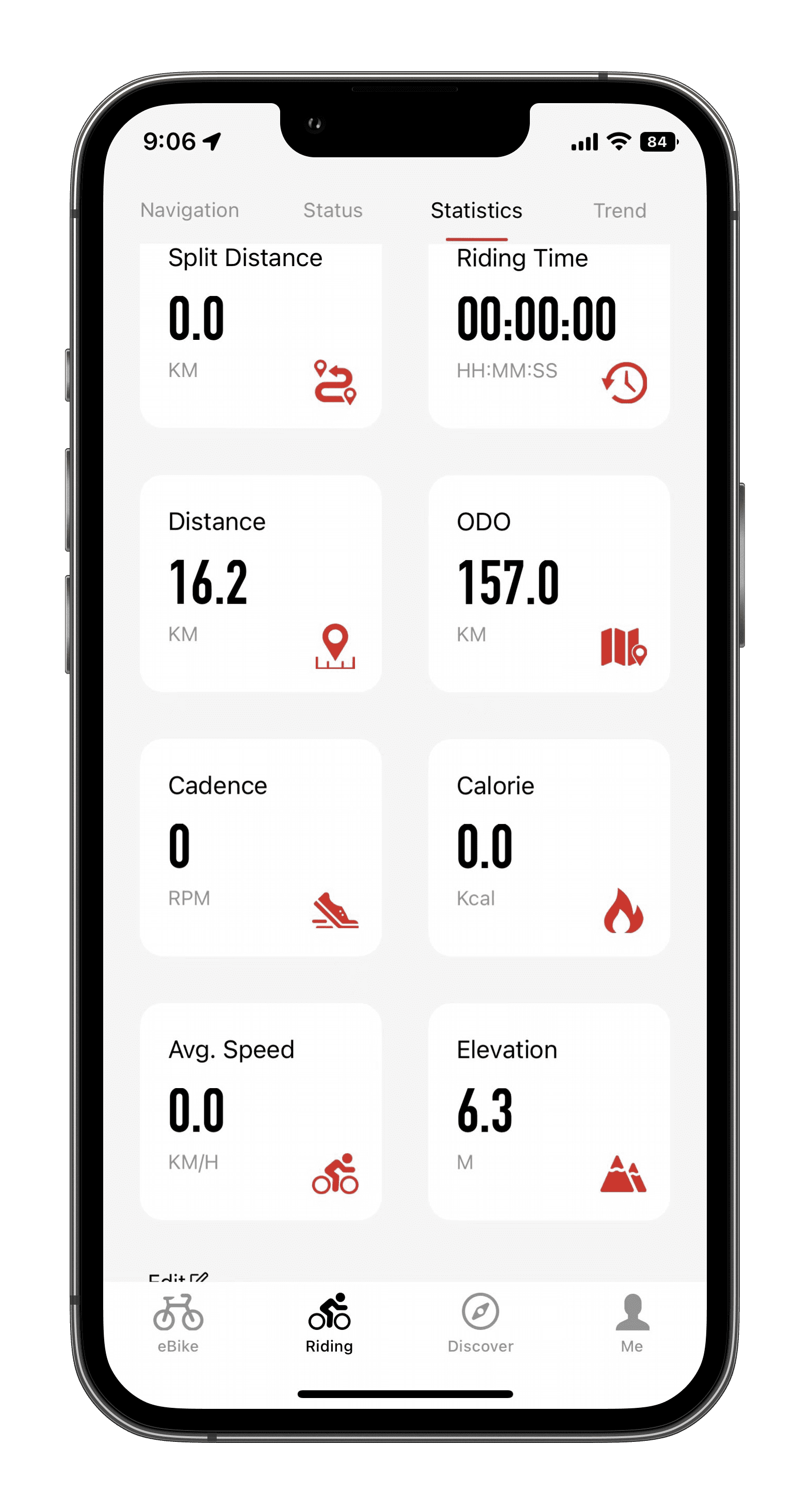
The Statistics page is made up of eight items.
· Split Distance
This value indicates the distance in kilometres from the start to the end of this ride.
If "Start" is not clicked, this value will not change.
If "Start" is clicked, this value will change depending on the information from the VK app and your smartphone.
· Riding Time
This value indicates the time used for this ride, in HH:MM:SS.
If "Start" is not clicked, this value will not change.
If "Start" is clicked, "this value will change depending on the information from the VK app and your smartphone.
· Distance
This value indicates the sum of all distances ridden, in kilometres, and is calculated by the eBike system.
It can be set to zero via the display.
· ODO
This value indicates the sum of all distances ridden, in kilometres, and is calculated by the eBike system.
It can not be set to zero.
· Cadence
The RPM value indicates the current information about the pedal cadence.
· Calorie
This value indicates the number of calories you burn during the entire ride.
· Avg.speed
This value indicates the average speed of your entire ride.
· Elevation
This value is calculated based on the GPS of your smartphone. The value displayed will be different for different phones.
2.5 Trend
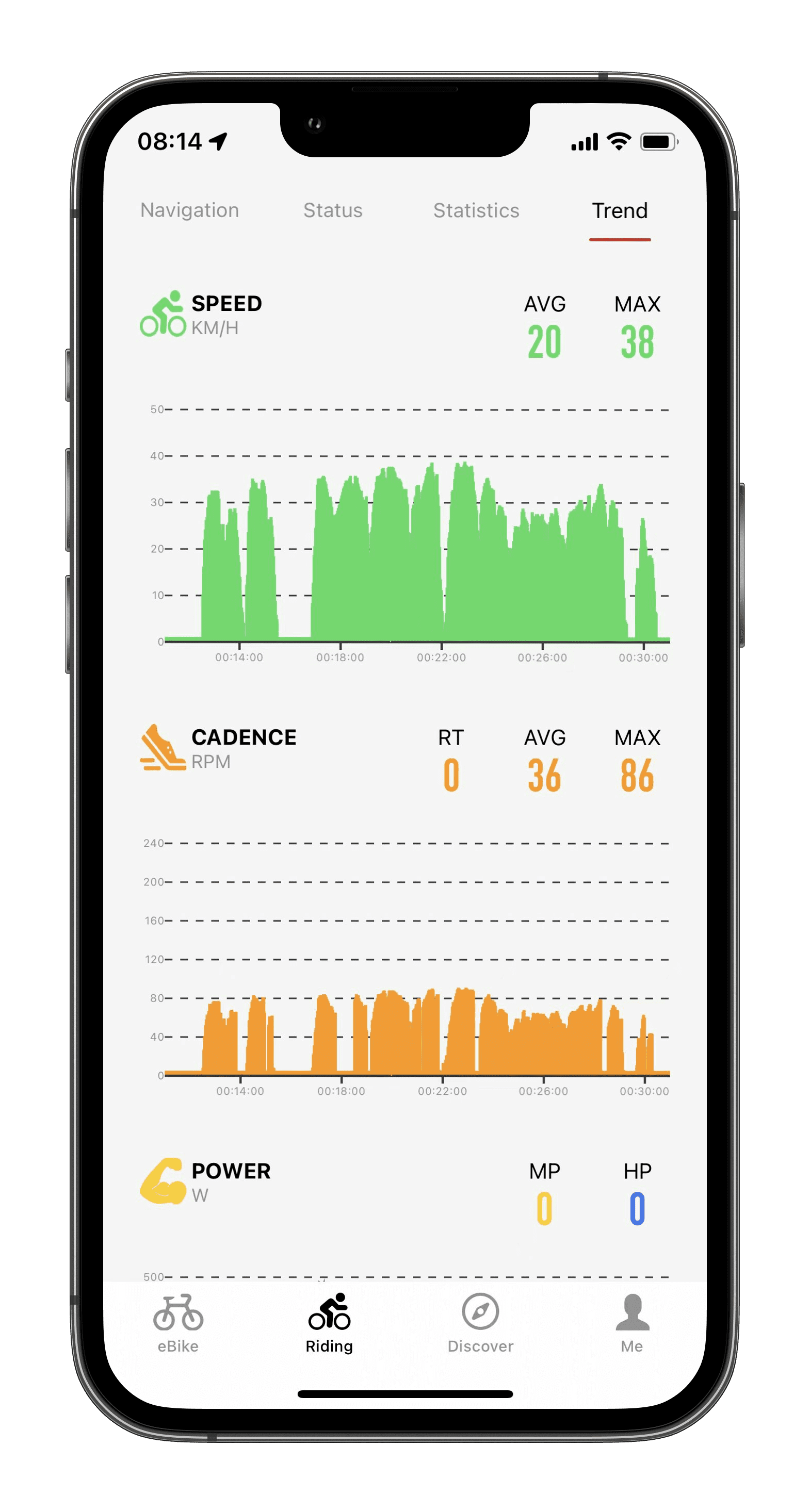
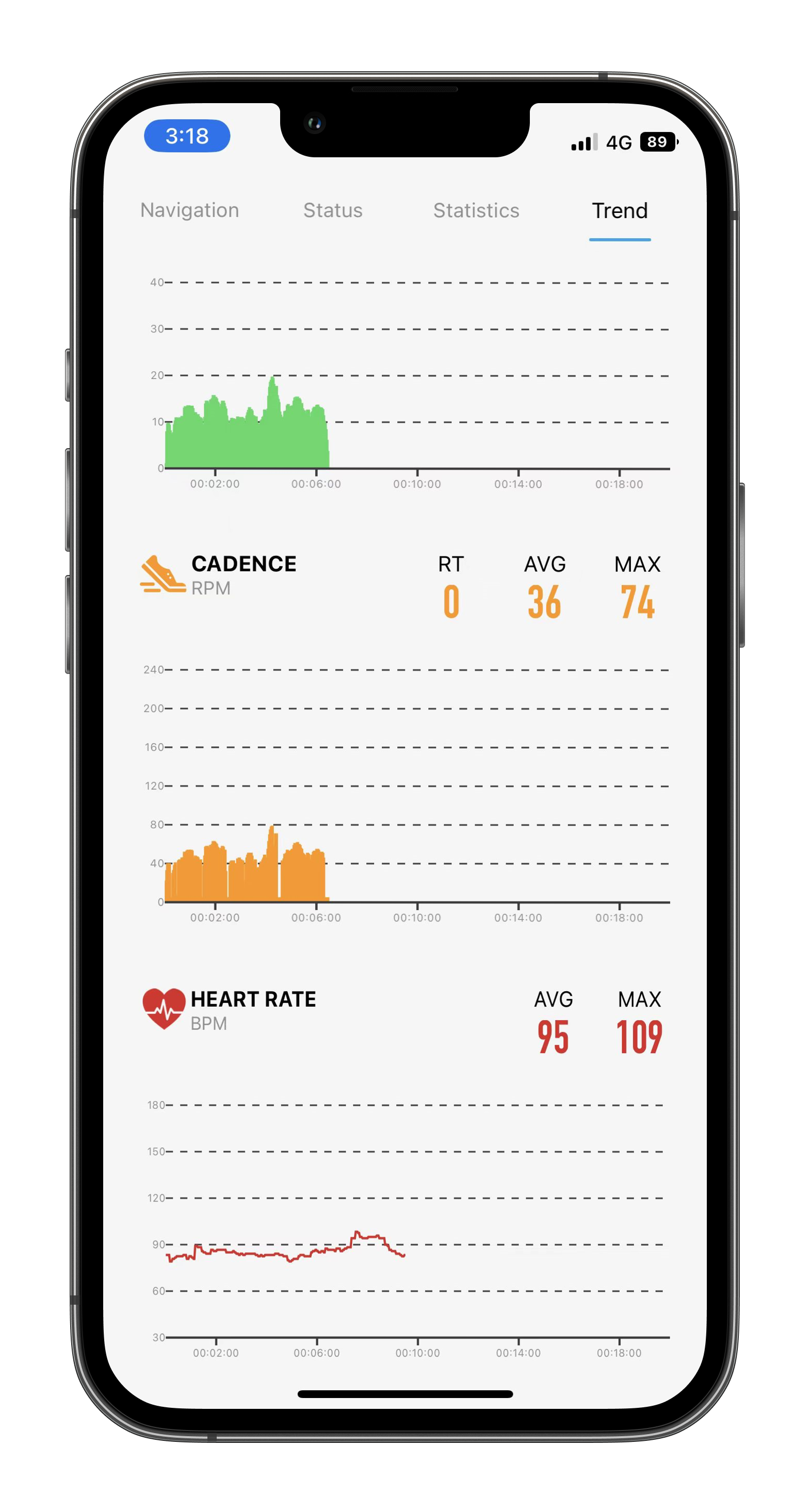
This page shows real-time ride data in a graphical format, including speed, pedal cadence, power, and heart rate.
· Speed
AVG/MAX:Average/Maximum speed while riding
· Cadence
RT/AVG/MAX:Rencently/ Average/Maximum cadence while riding
· Power
MP/HP:Motor Power/Human Power while riding
· Heart Rate
AVG/MAX:Average/Maximum heart rate while riding
(This feature is currently only supported for users with Apple Watch devices)
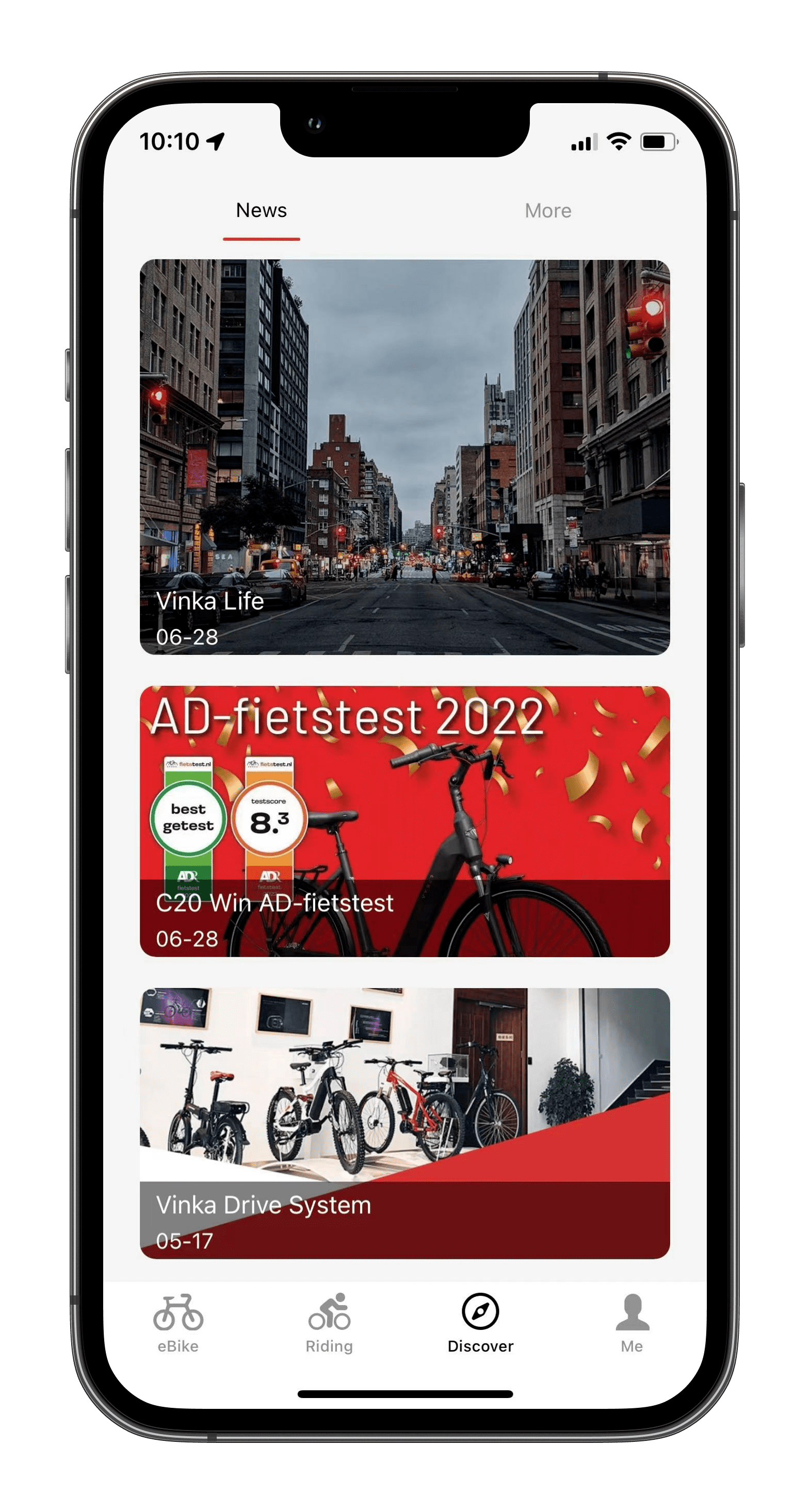
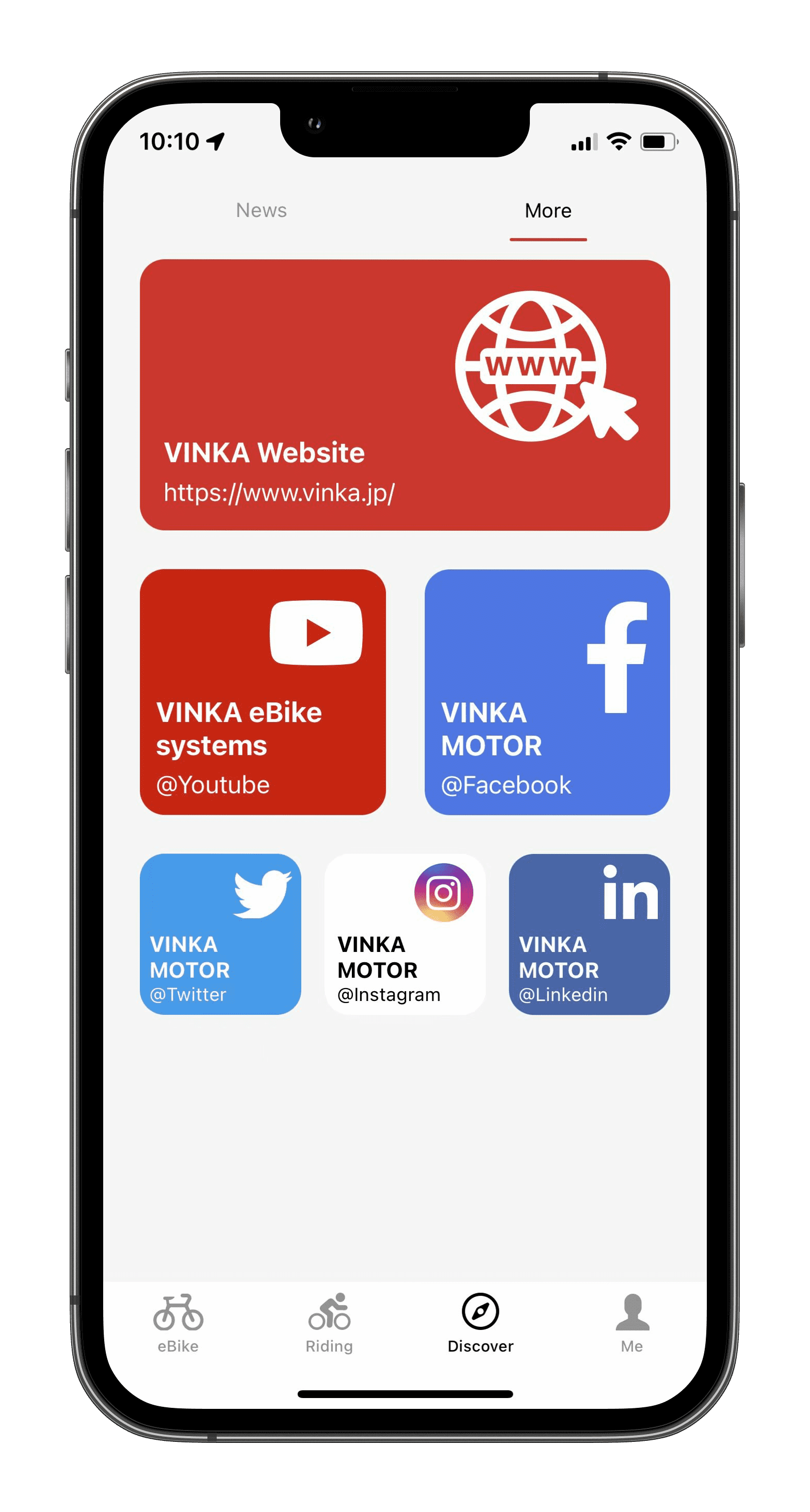
3.DISCOVER
3.1 News
3.2 More
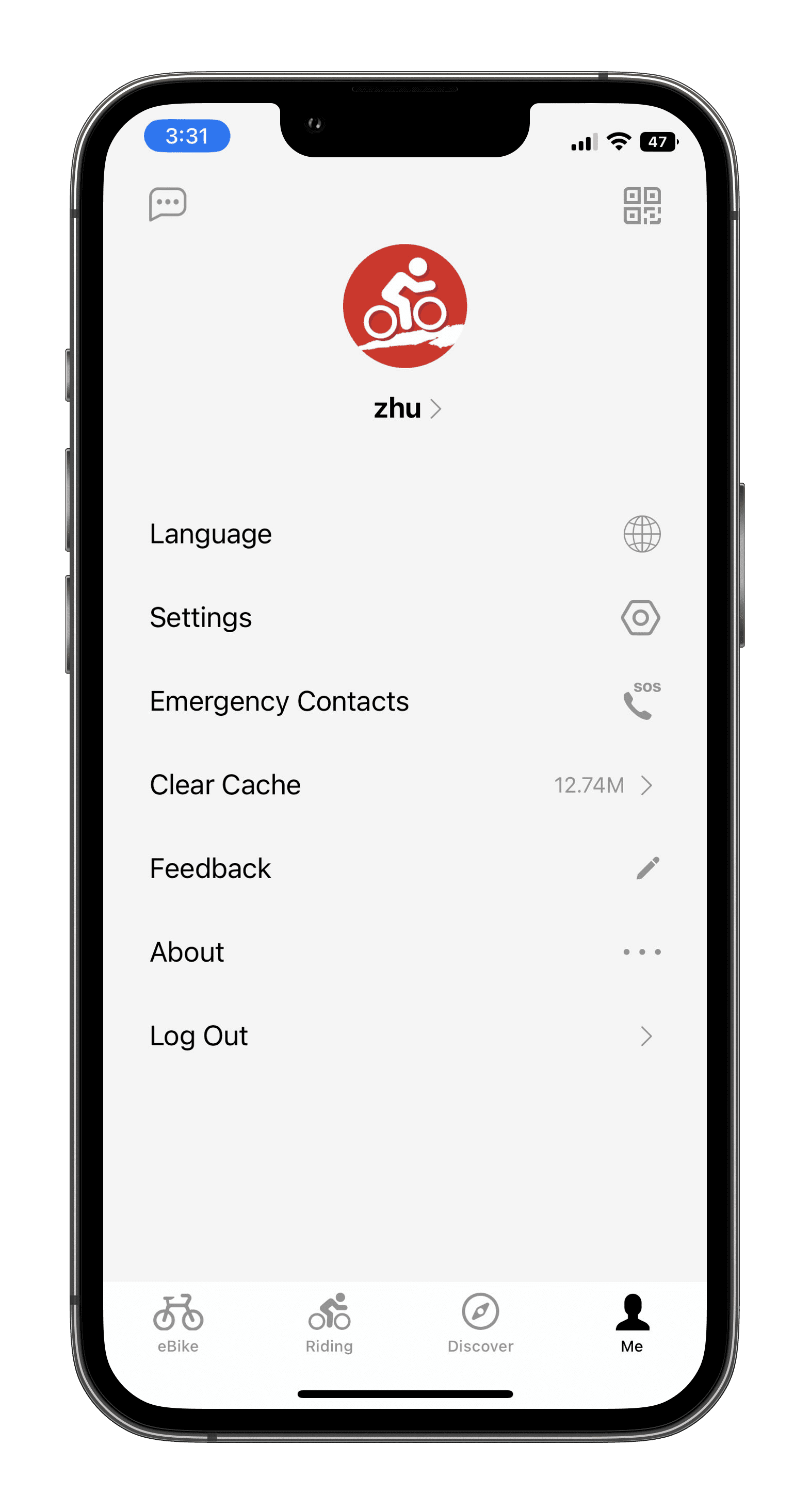
4.ME
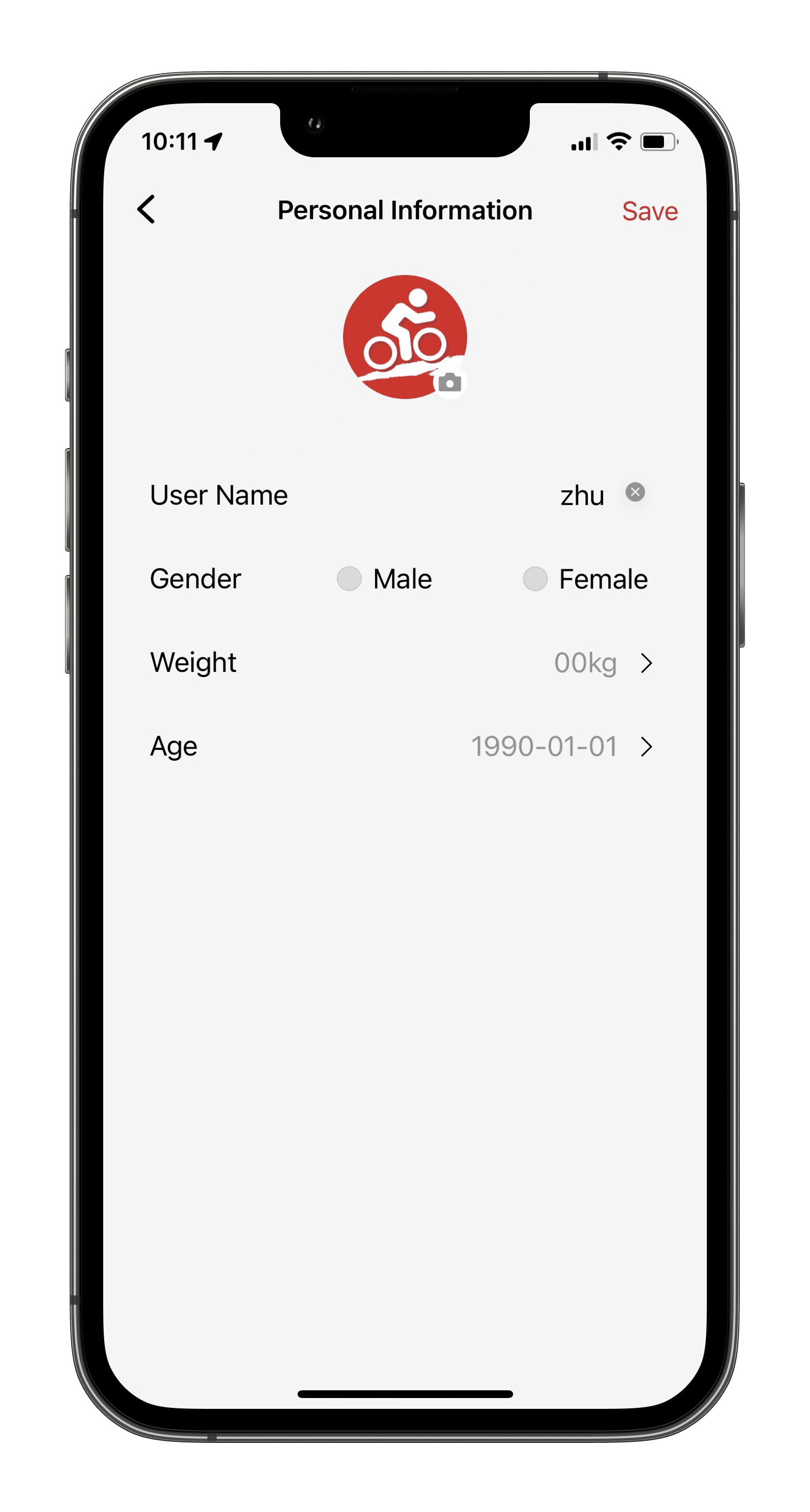
4.1 Edit Personal Information
Click on this icon to log out or change your information, such as image.
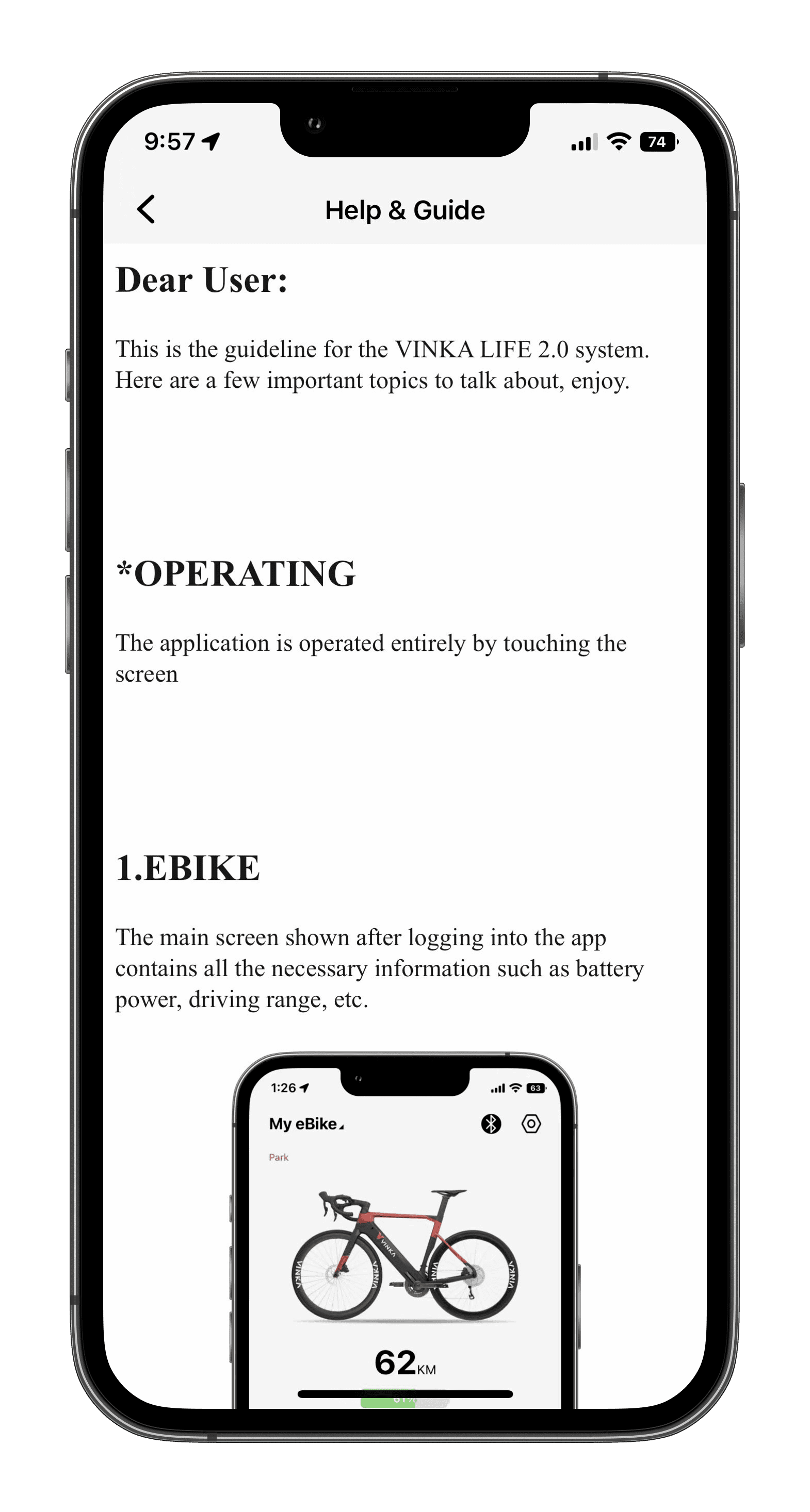
4.2 Help& Guide
Click on this button to go to the user guidance notes.
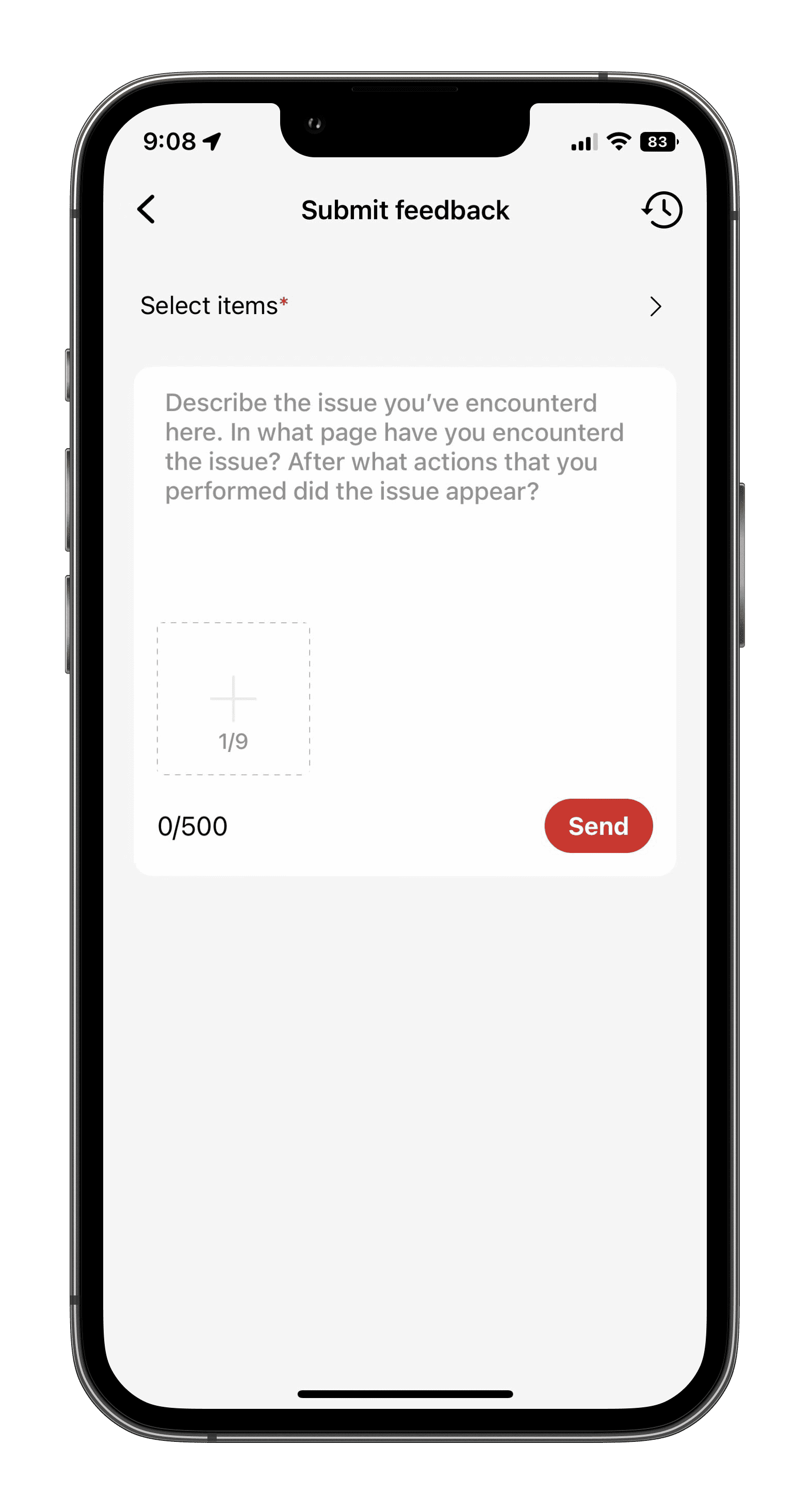
4.3 Submit Feedback
Click on this icon to send feedback to our support team.
Click on the text box, write the content and click 'Send' to send it. Click on the icon in the top right hand corner to view the feedback history.
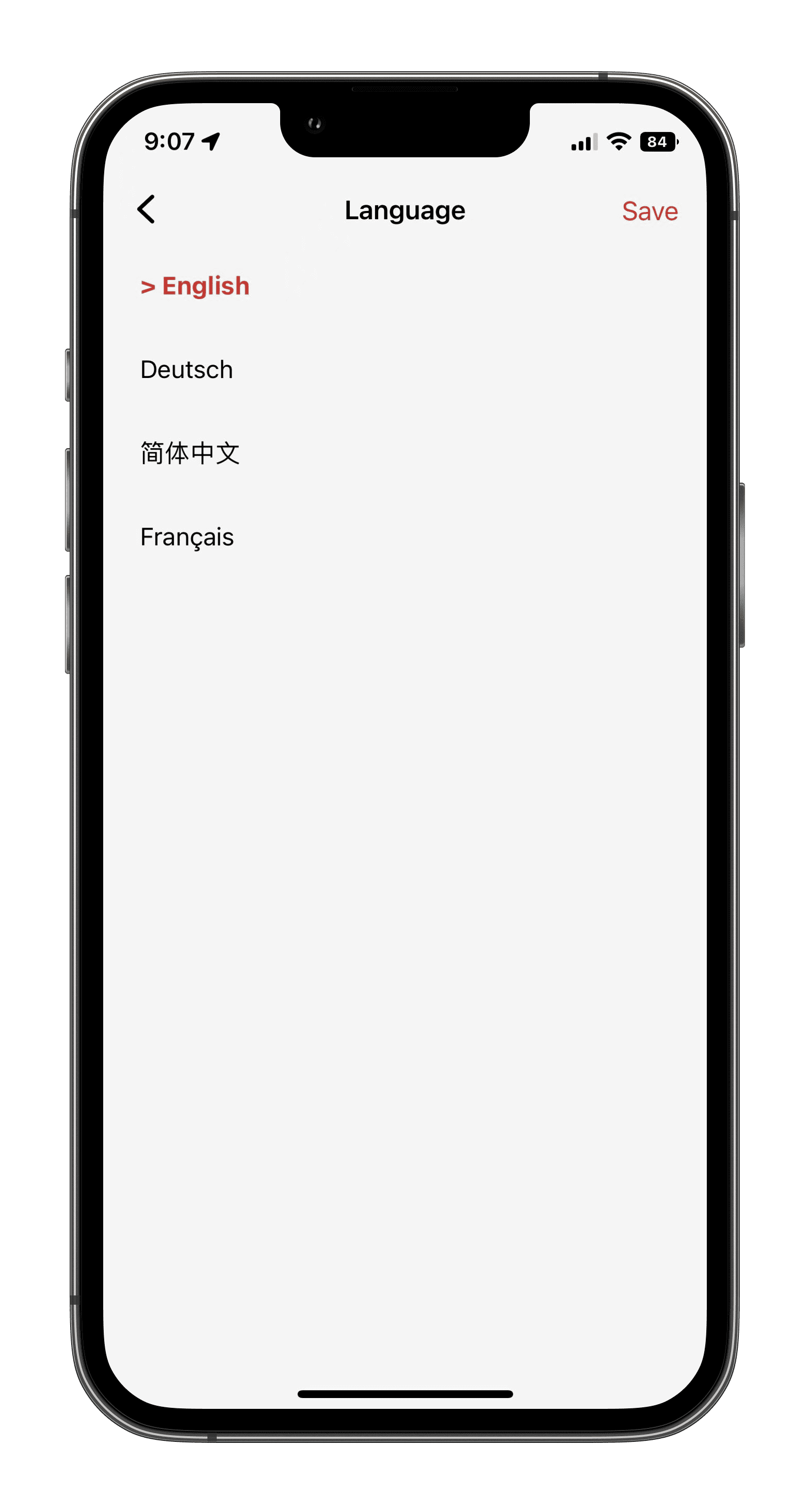
4.4 Language
Click into the submenu to select a language. English, Chinese and French are currently supported, but more languages will be added.
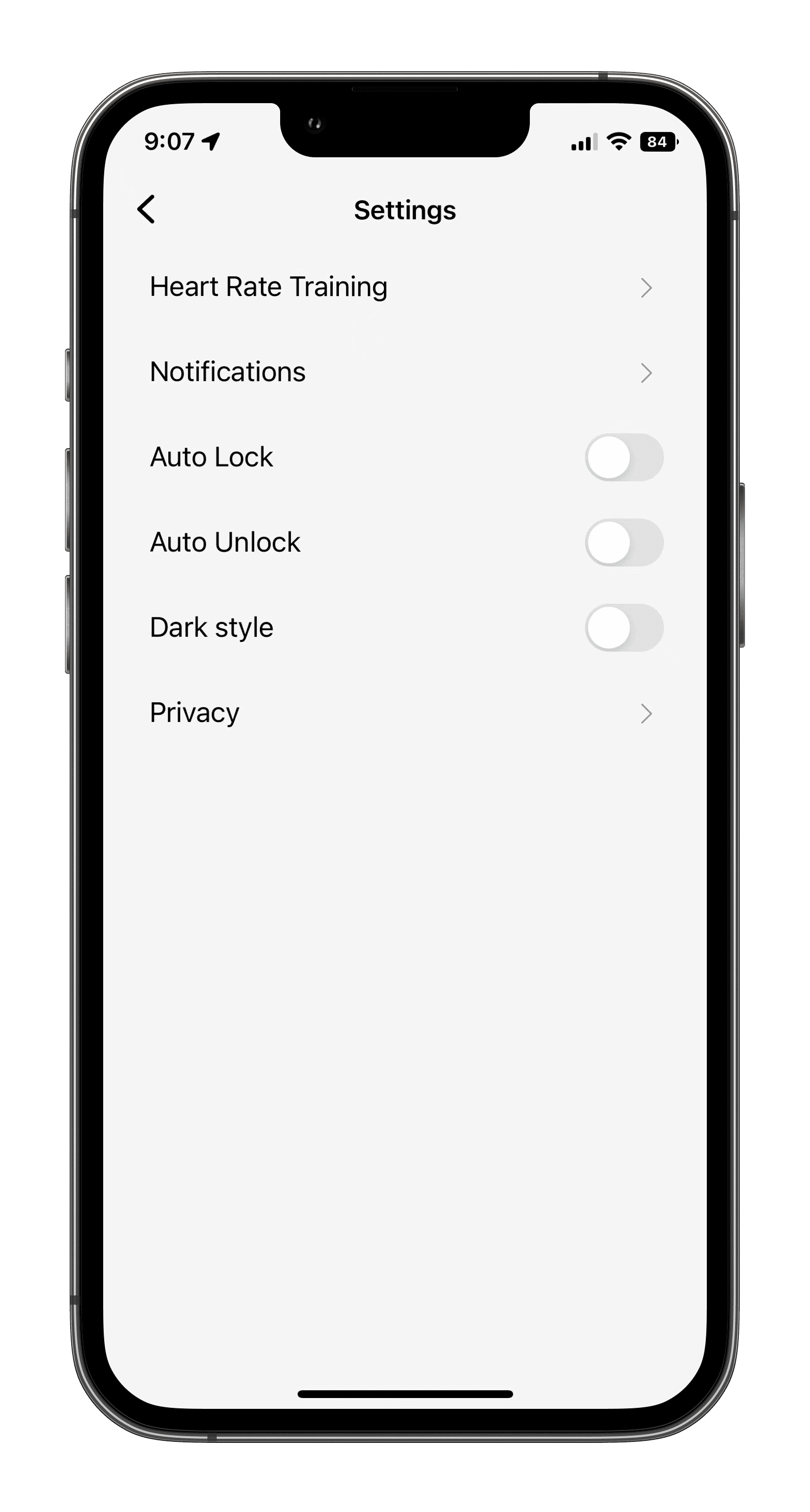
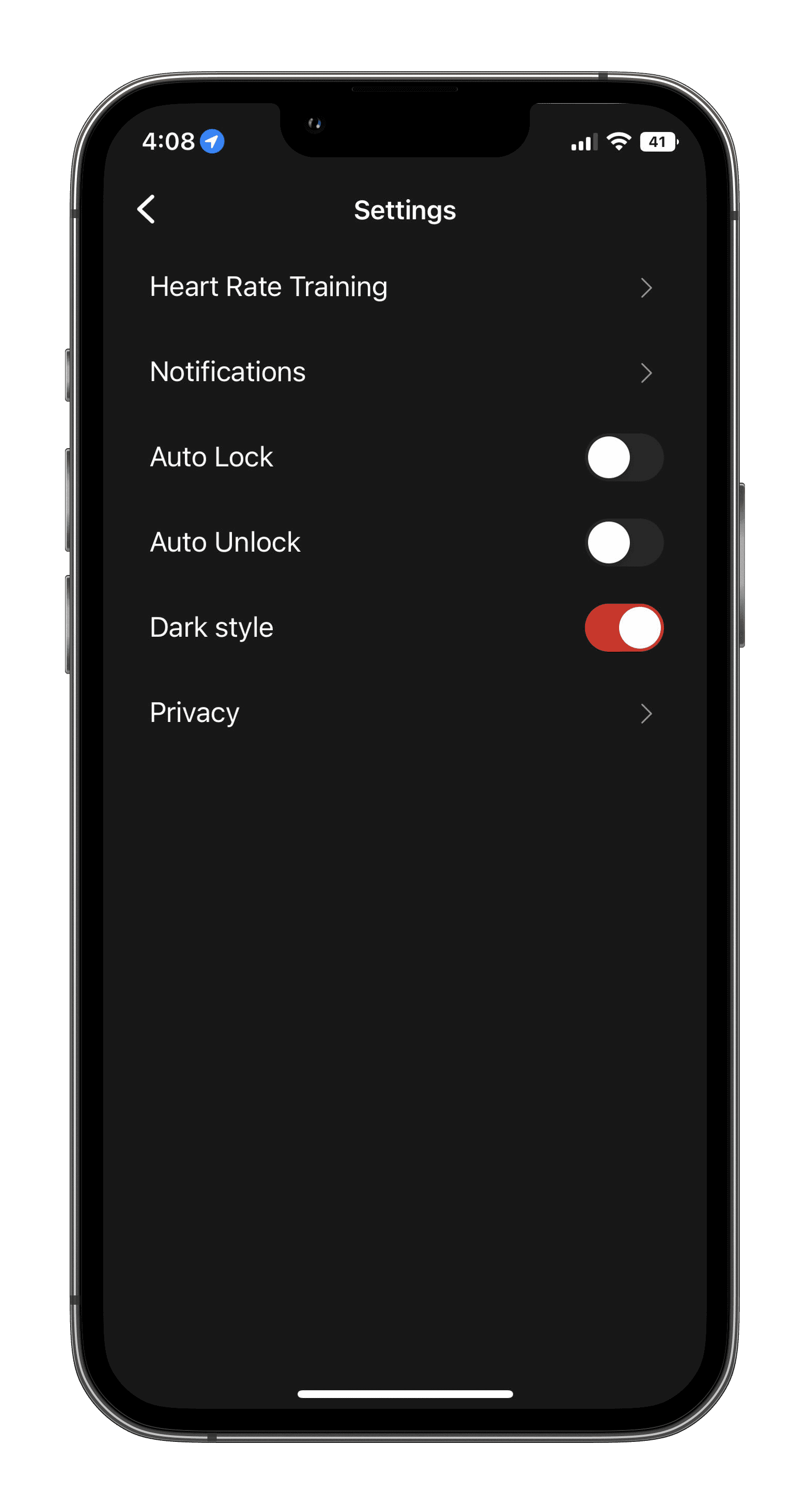
4.5 Setting
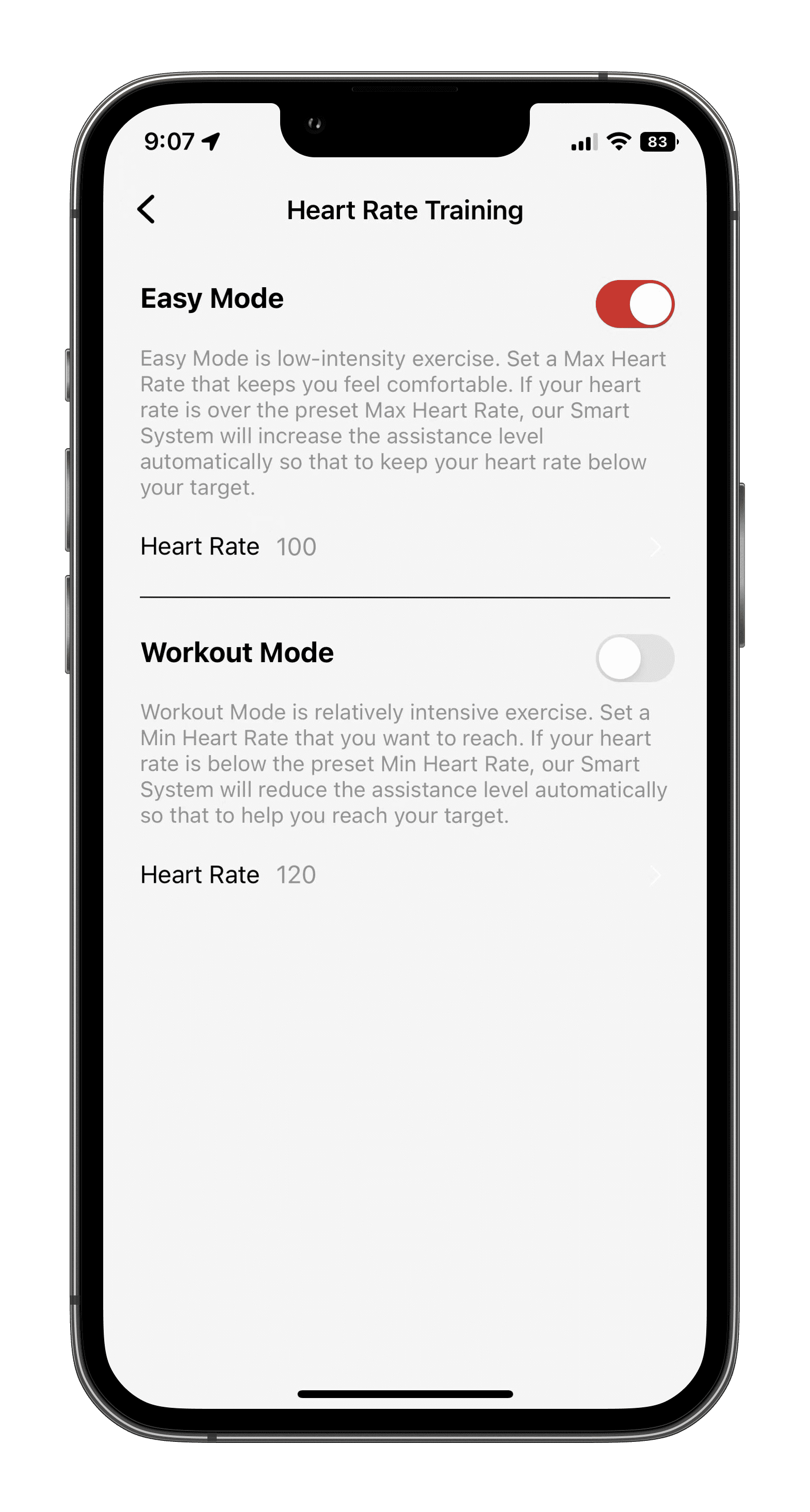
4.5.1 Heart Rate Training
This page allows you to select a training mode that enables the VK system to adjust the motor boost according to the heart rate value.
(This feature is currently only supported for users with Apple Watch devices)
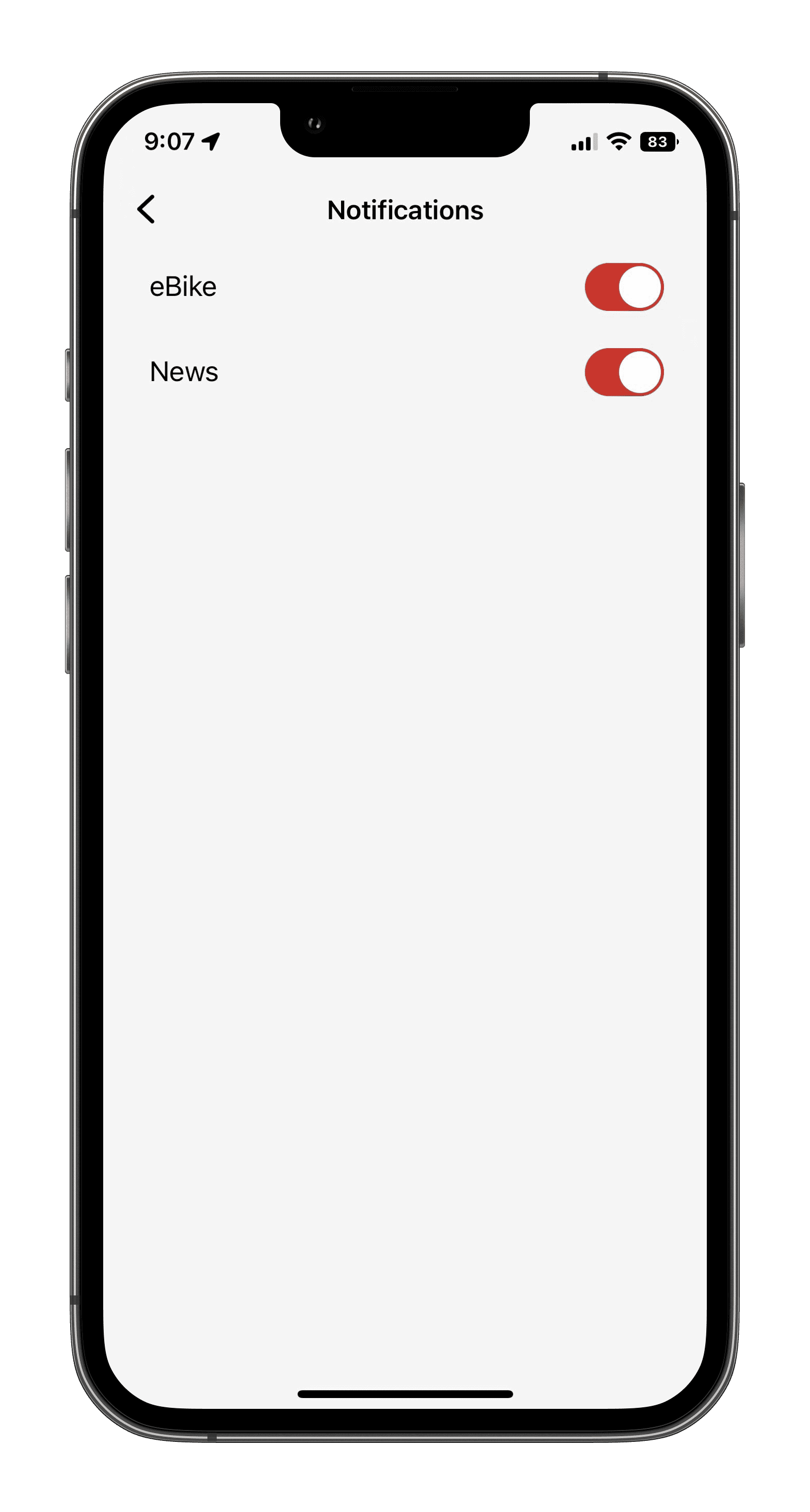
4.5.2 Notification
The system turns on message notifications by default. If you reject message notifications, click to turn off message pushing.
· You can view all historical push messages by clicking on the icon in the top left corner of the "Me" page
4.5.3 Dark style
The system defaults to light mode, you can click on it to change to dark mode.
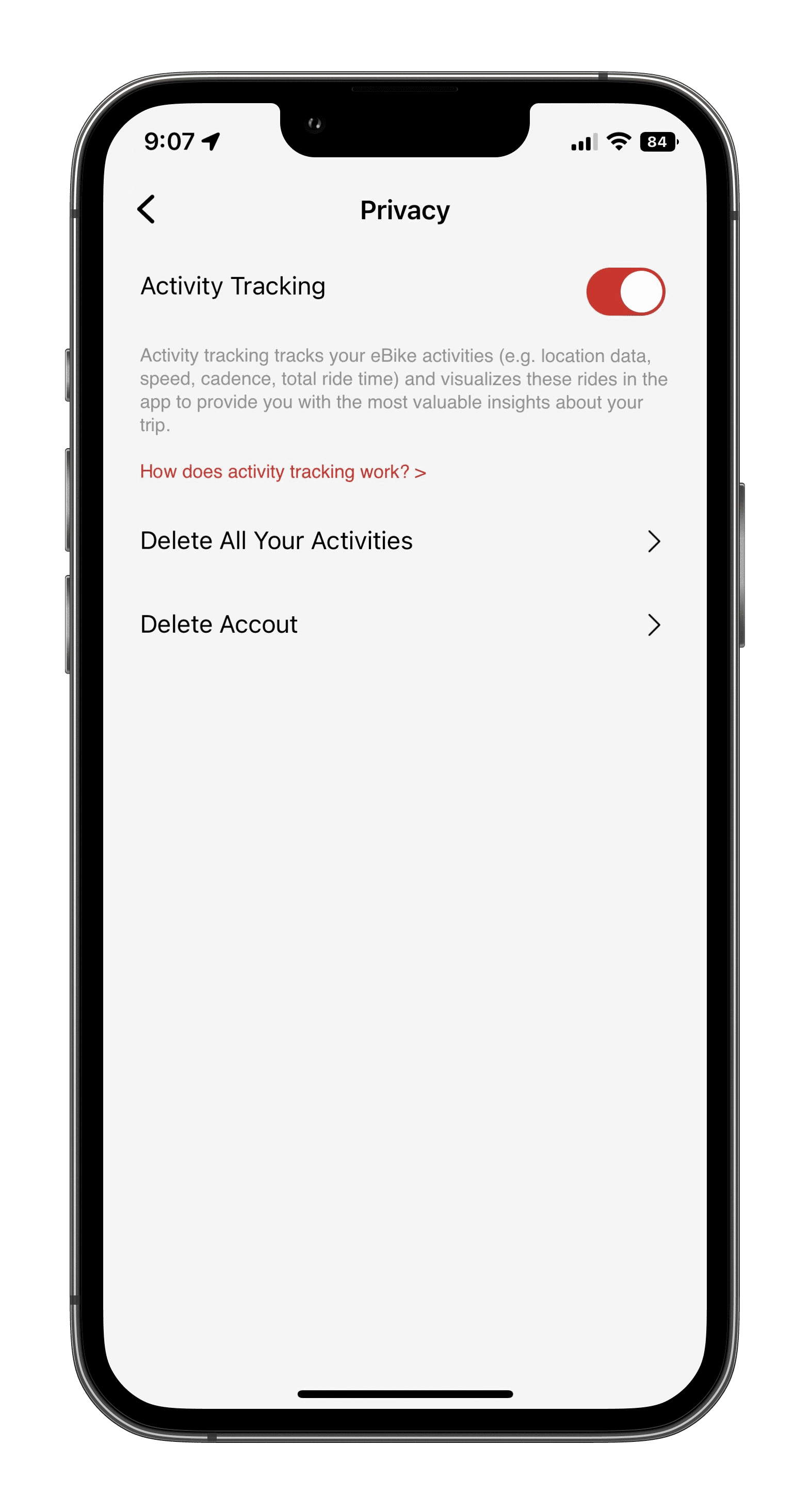
4.5.4 Privacy
You can choose to turn activity tracking on or off, and you can also delete accounts and activity records.
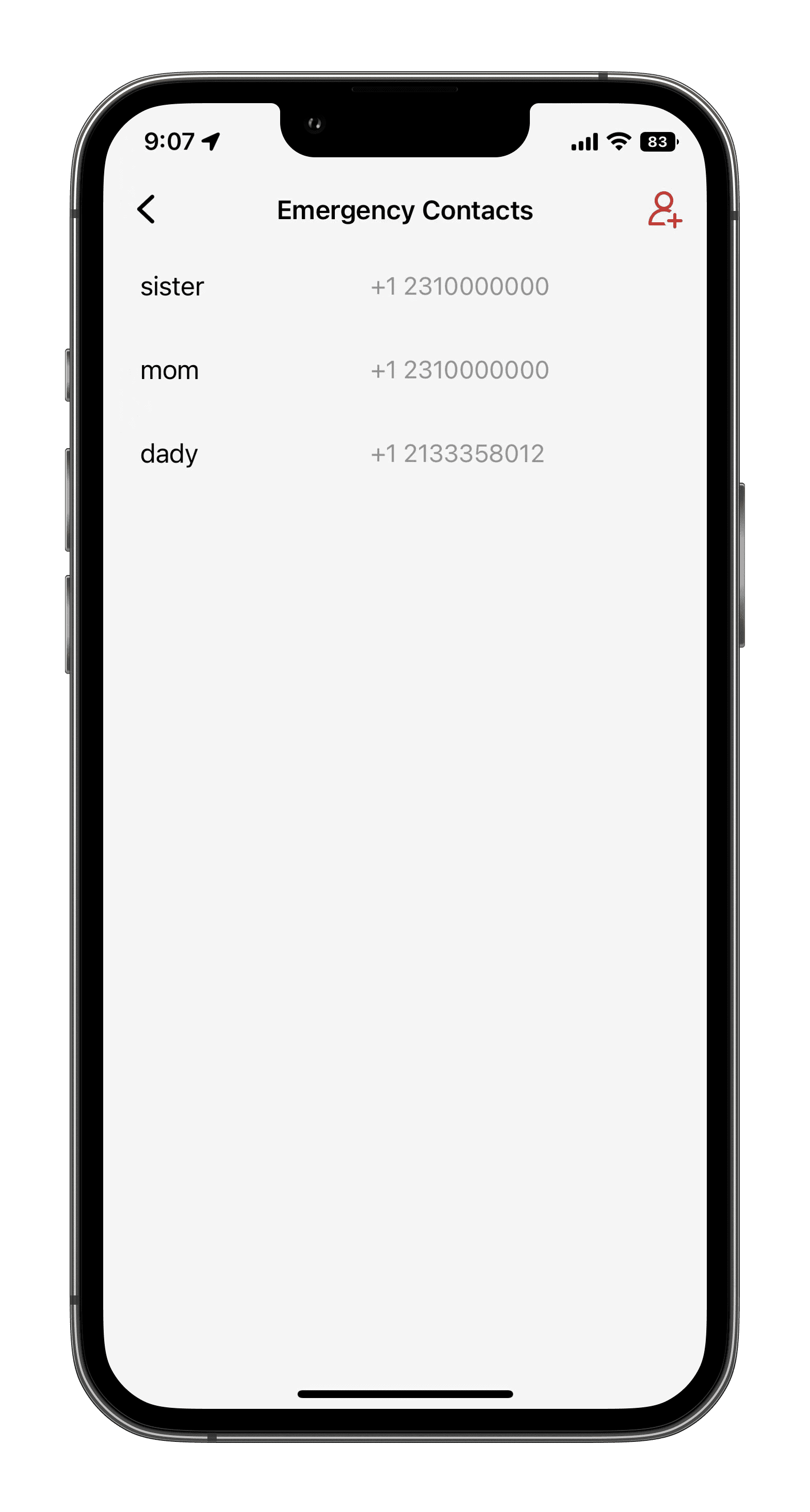
4.6 Emergency Contacts
You can click to add up to 3 emergency contacts.
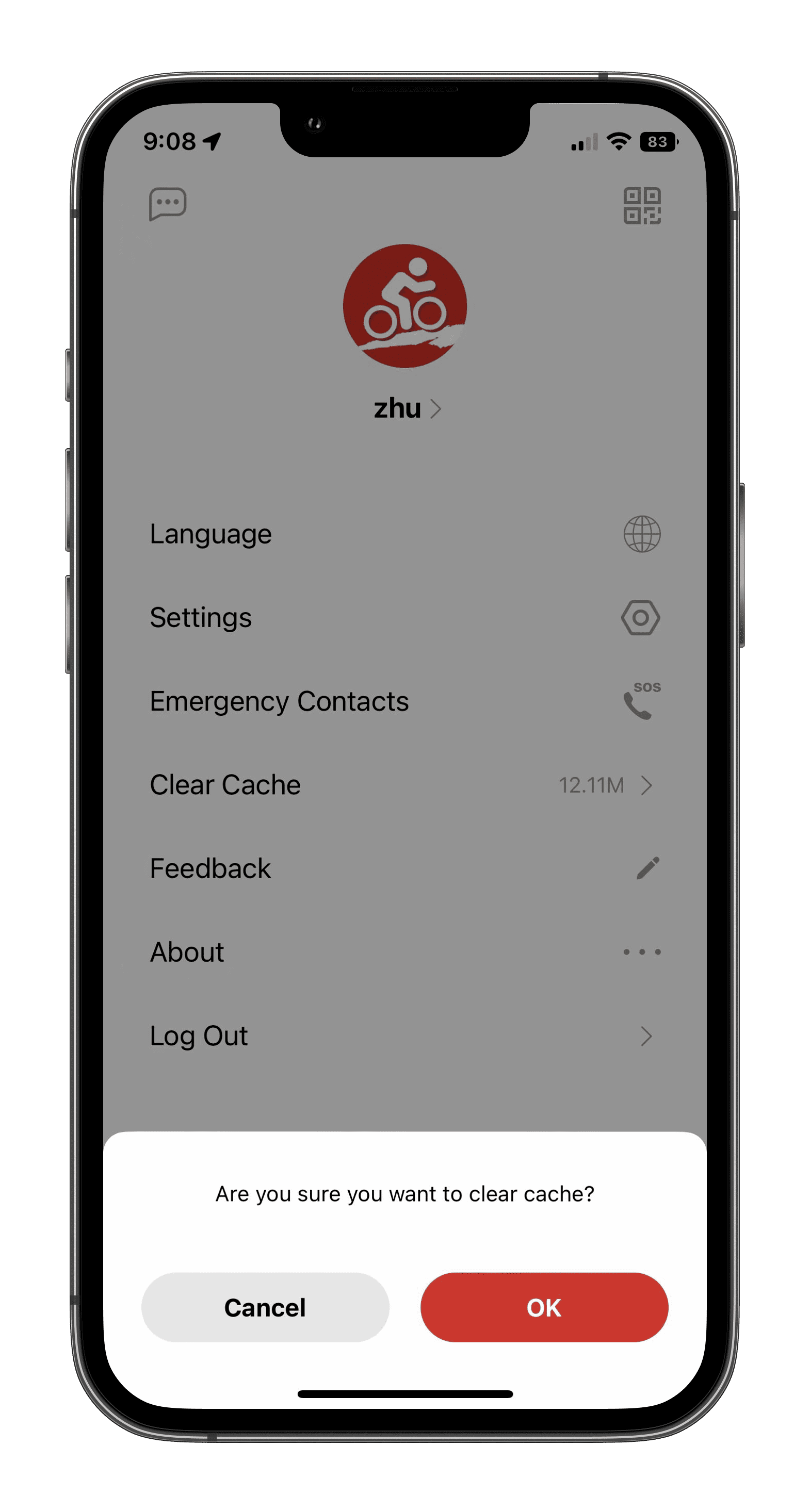
4.7 CIear cache
When you click on Clear Cache, a confirmation menu will appear asking if you are sure to clear it.
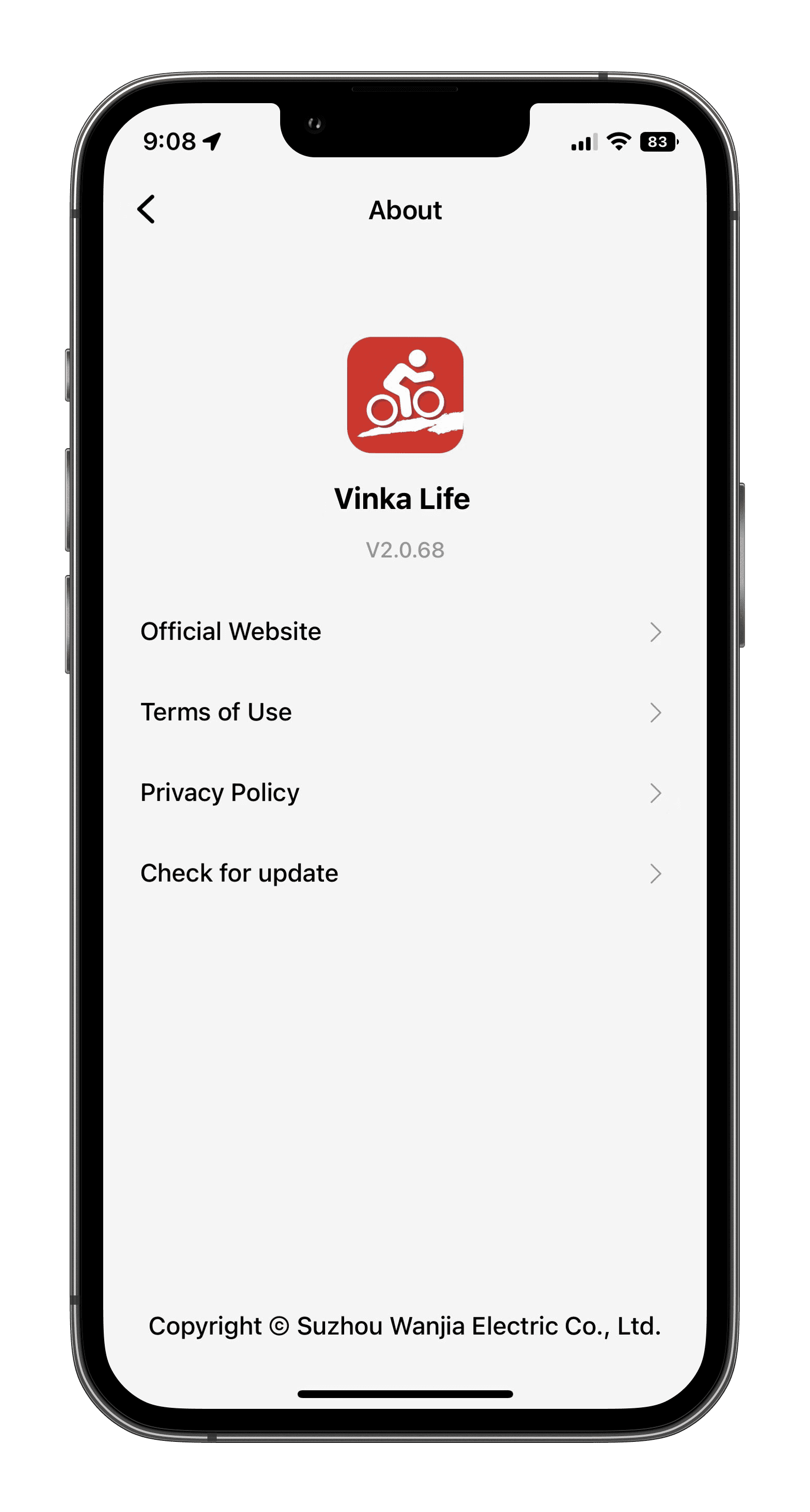
4.8 About
Click on this icon to view the VK App version.
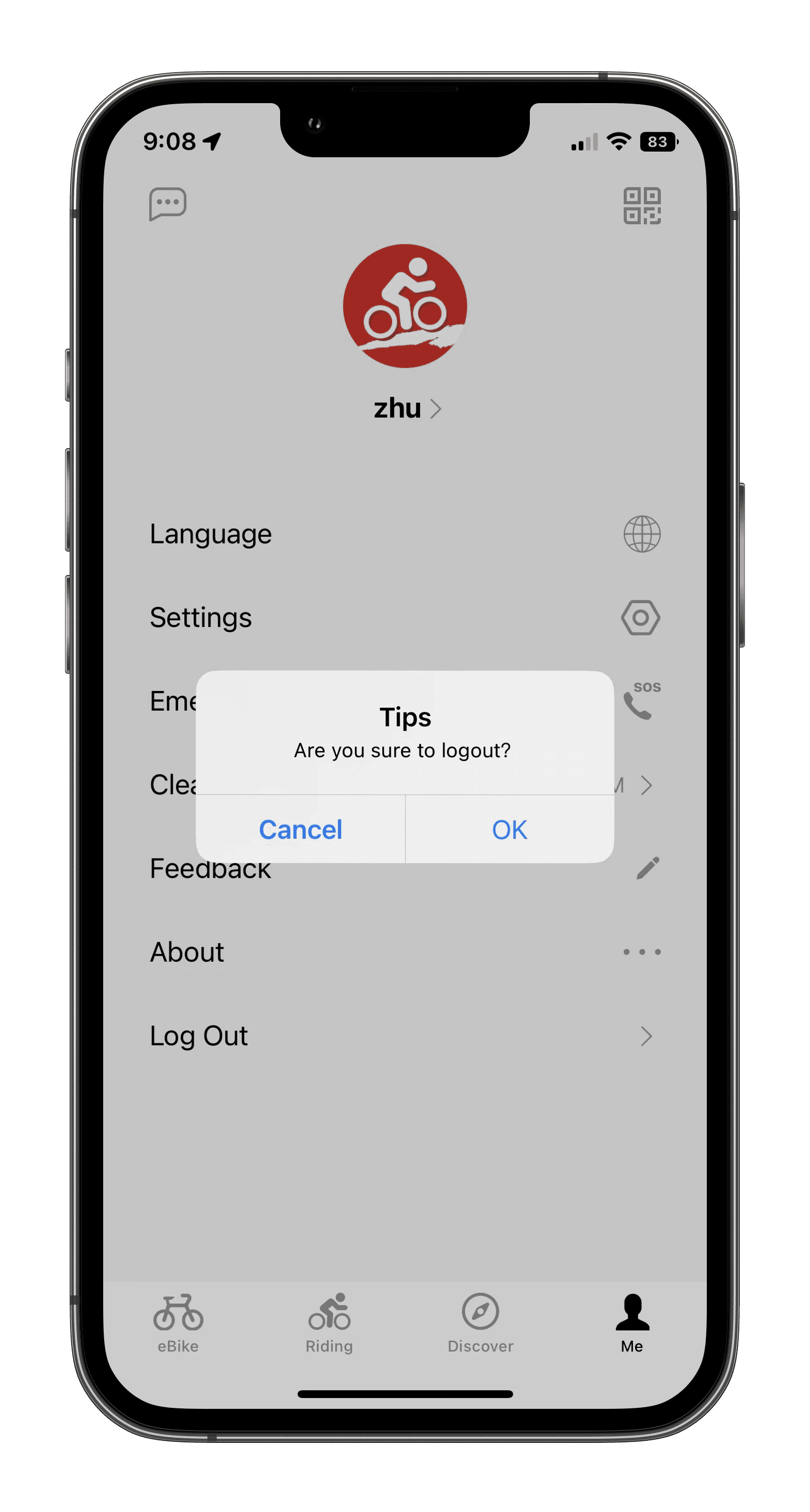
4.9 Log out
When you click on Log Out, a confirmation menu will appear asking if you insist on leaving.